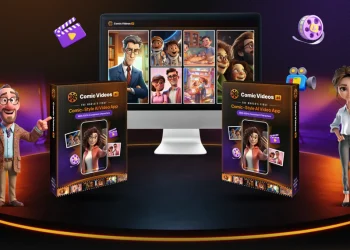
















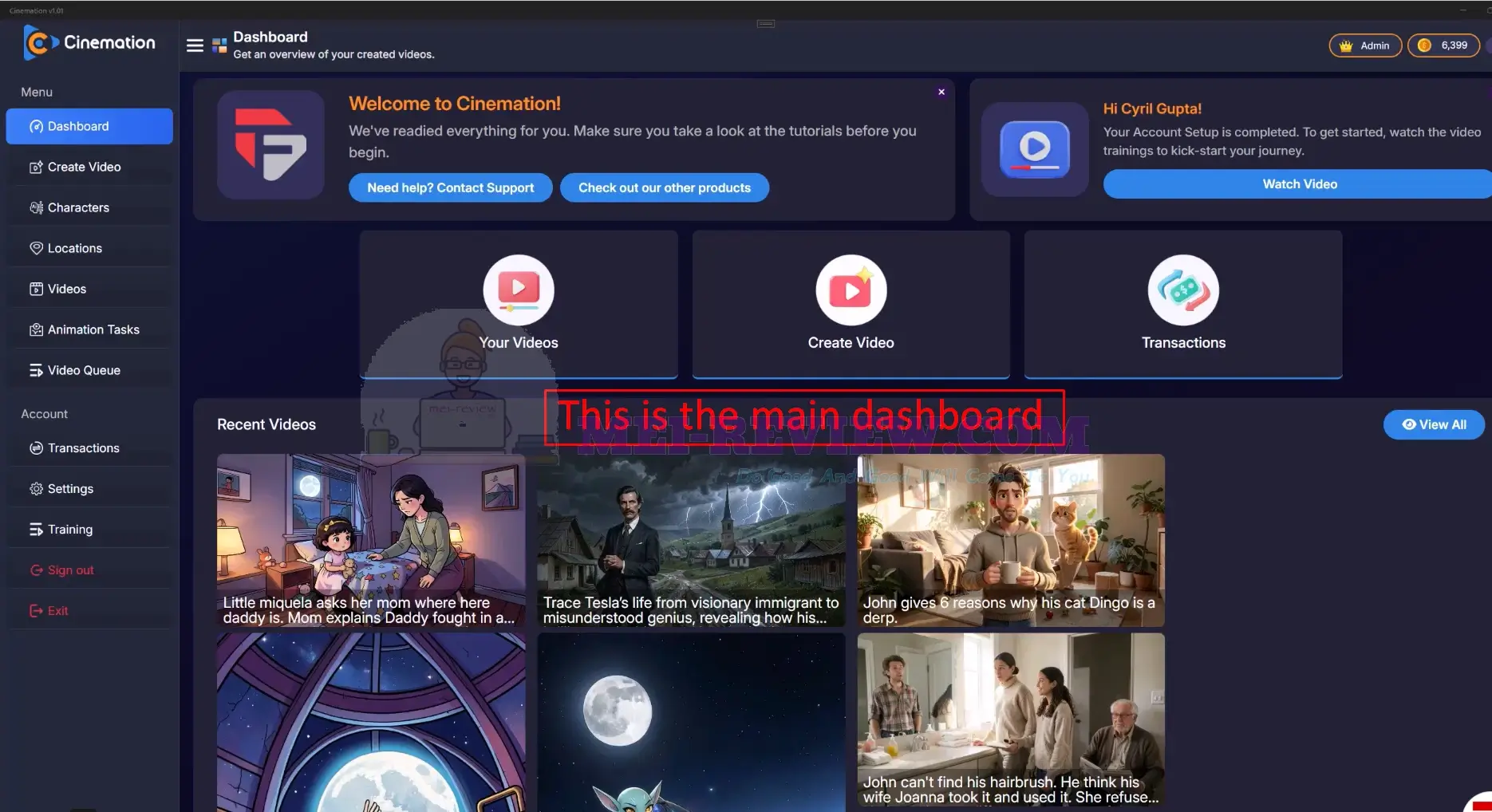
This is the main dashboard where everything begins:
[+] Create A New Video Project
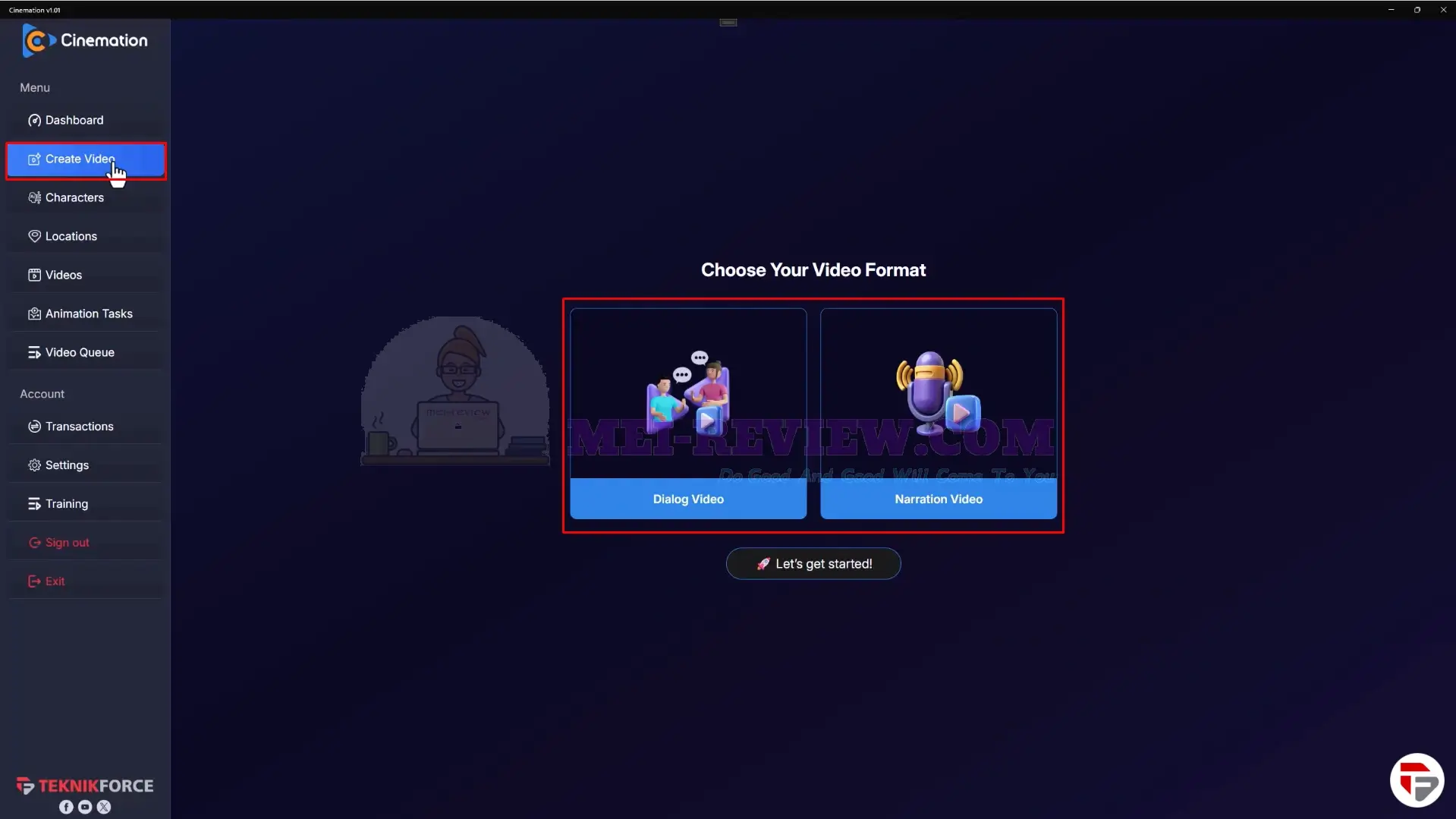
To start creating, go to the “Create Video” tab on the left side. From here, you can pick the format that fits your content.
Choose a “Dialog Video” if you want characters to interact, or go with a “Narration Video” if you prefer a voiceover-style presentation:
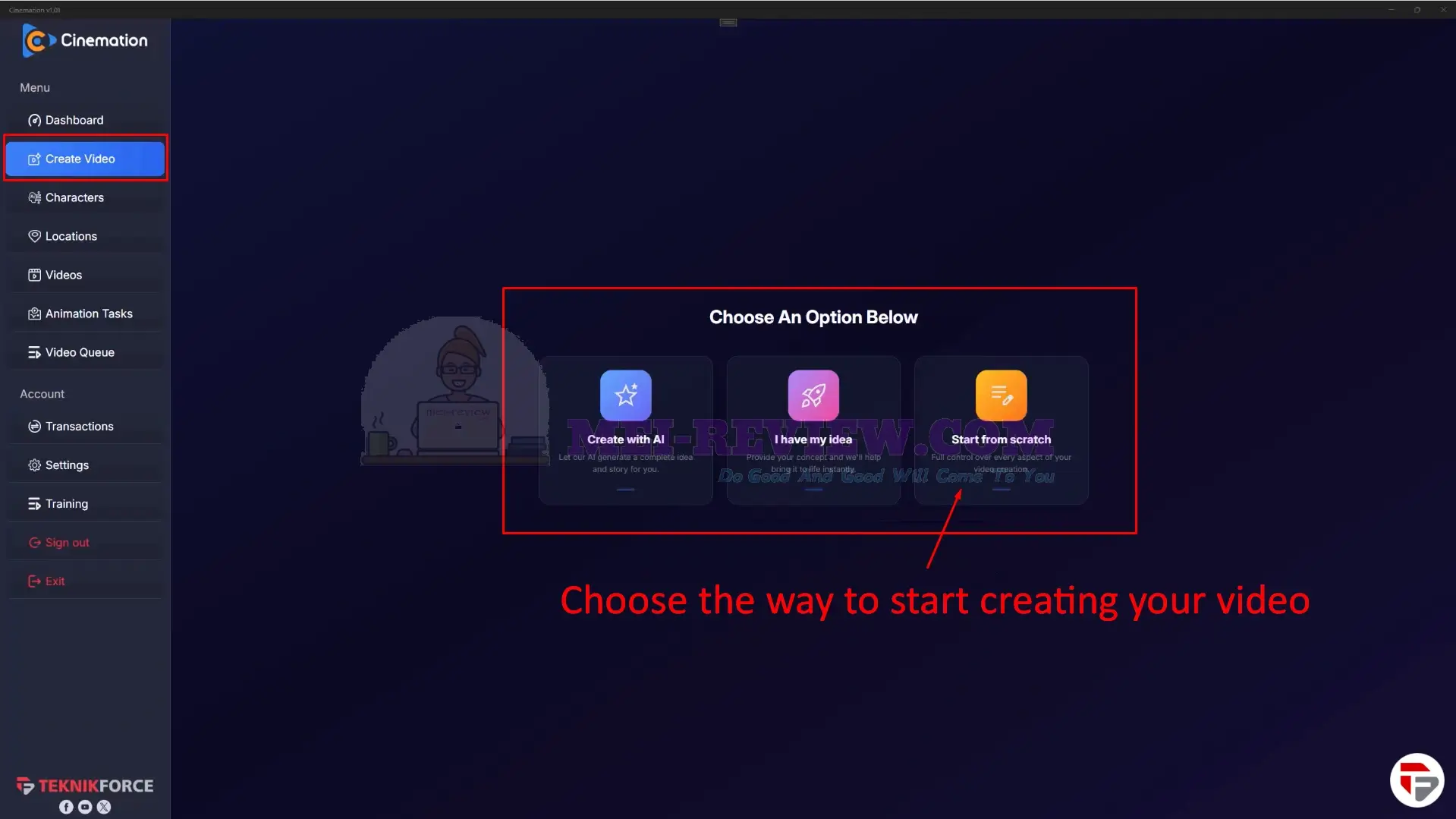
Next, decide how you want to build your video. You can let the AI take full control, begin with your own idea, or create everything step by step on your own:
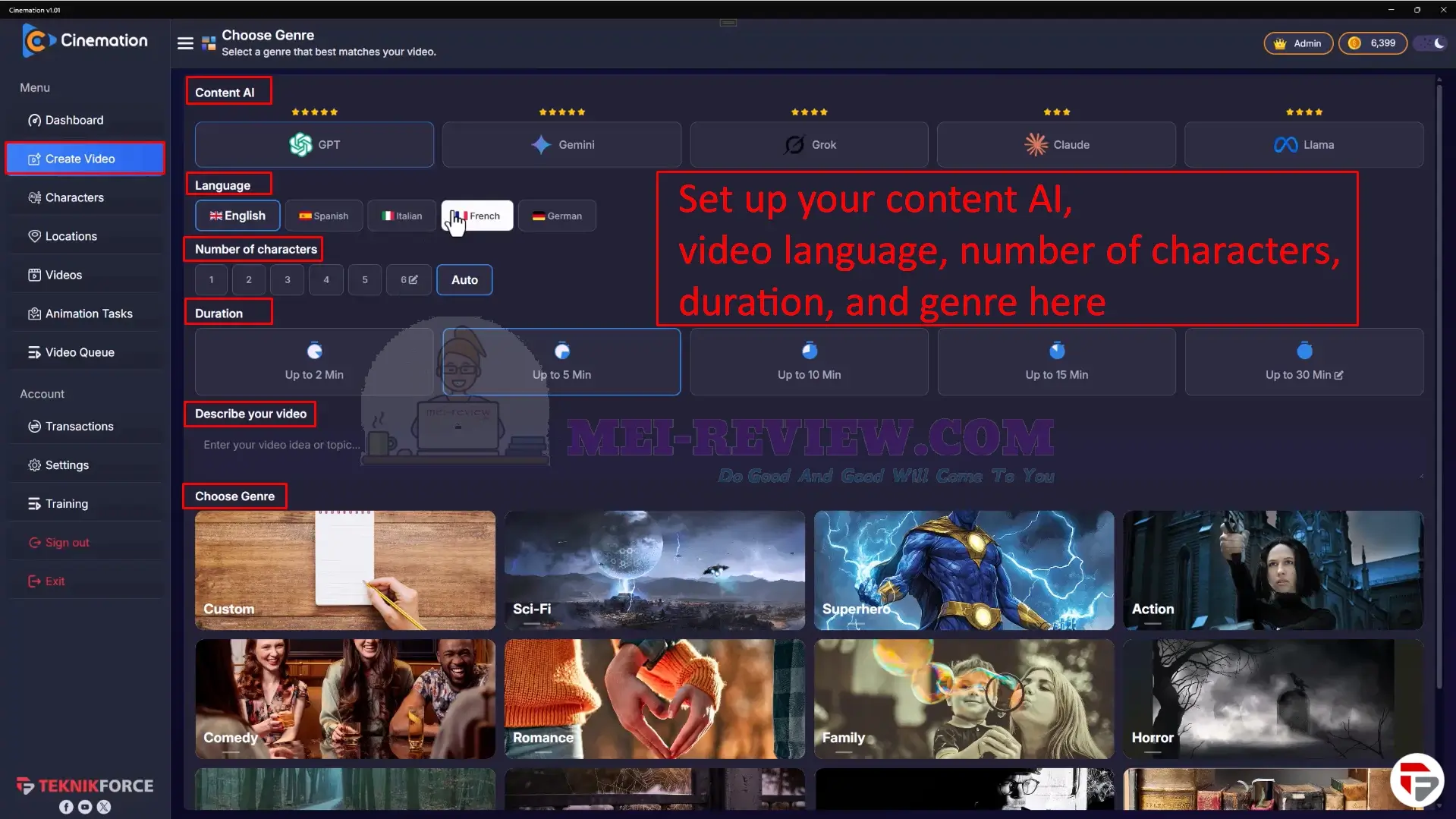
When you select “Create with AI“, this is where the setup happens.
You can pick an AI model, choose the language, set the number of characters and video length, then enter your idea and select a genre:
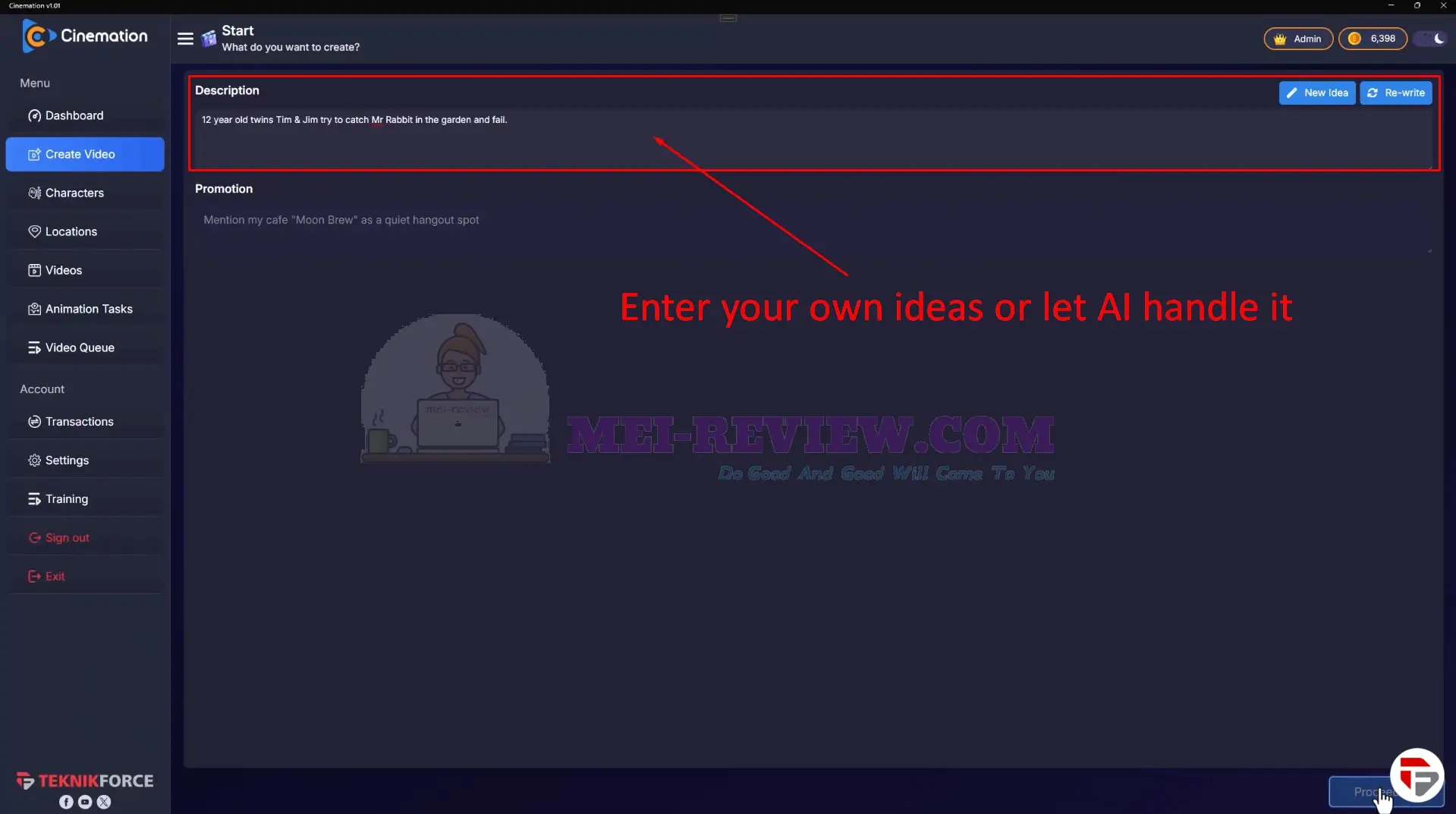
After that, the AI prepares the script and structure for you automatically, though you can still adjust it using your own ideas. Once you’re happy with it, click “Proceed“:
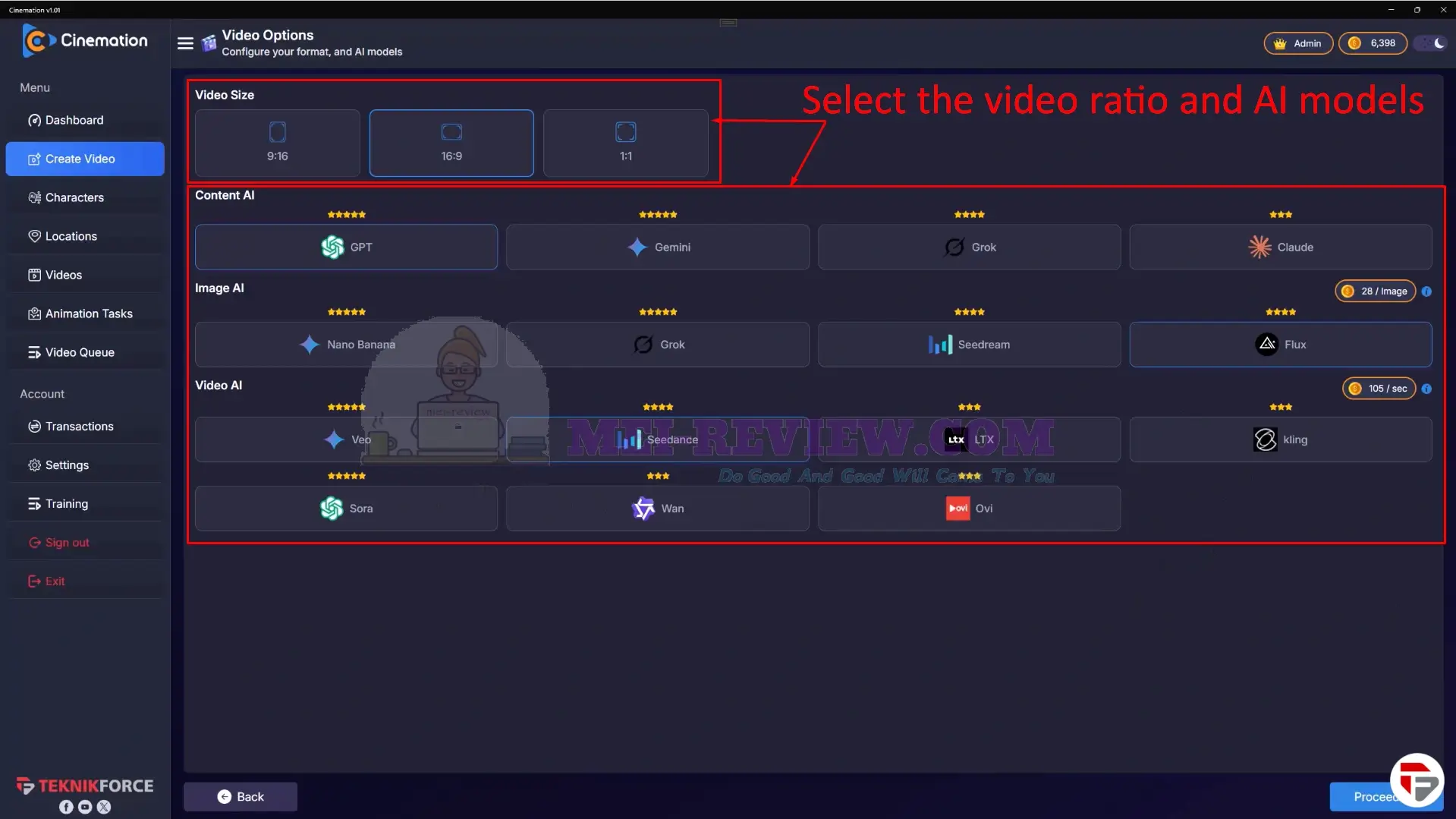
From there, choose your video size based on where you plan to publish it. You can also select different AI models for content, images, and video generation to match the style and quality you want:
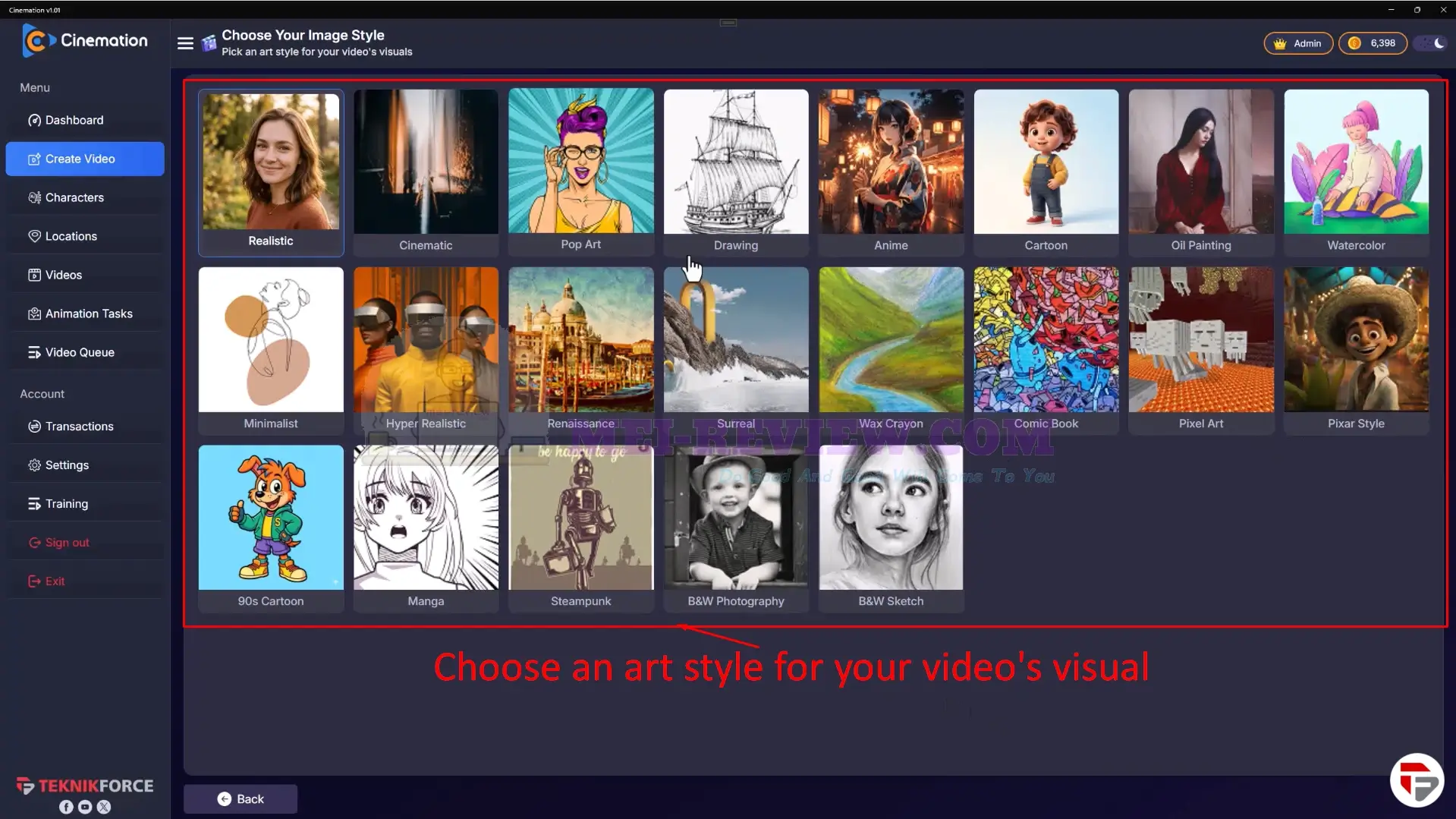
Next, pick an art style that fits your vision—options like realistic, cinematic, anime, or cartoon are available:
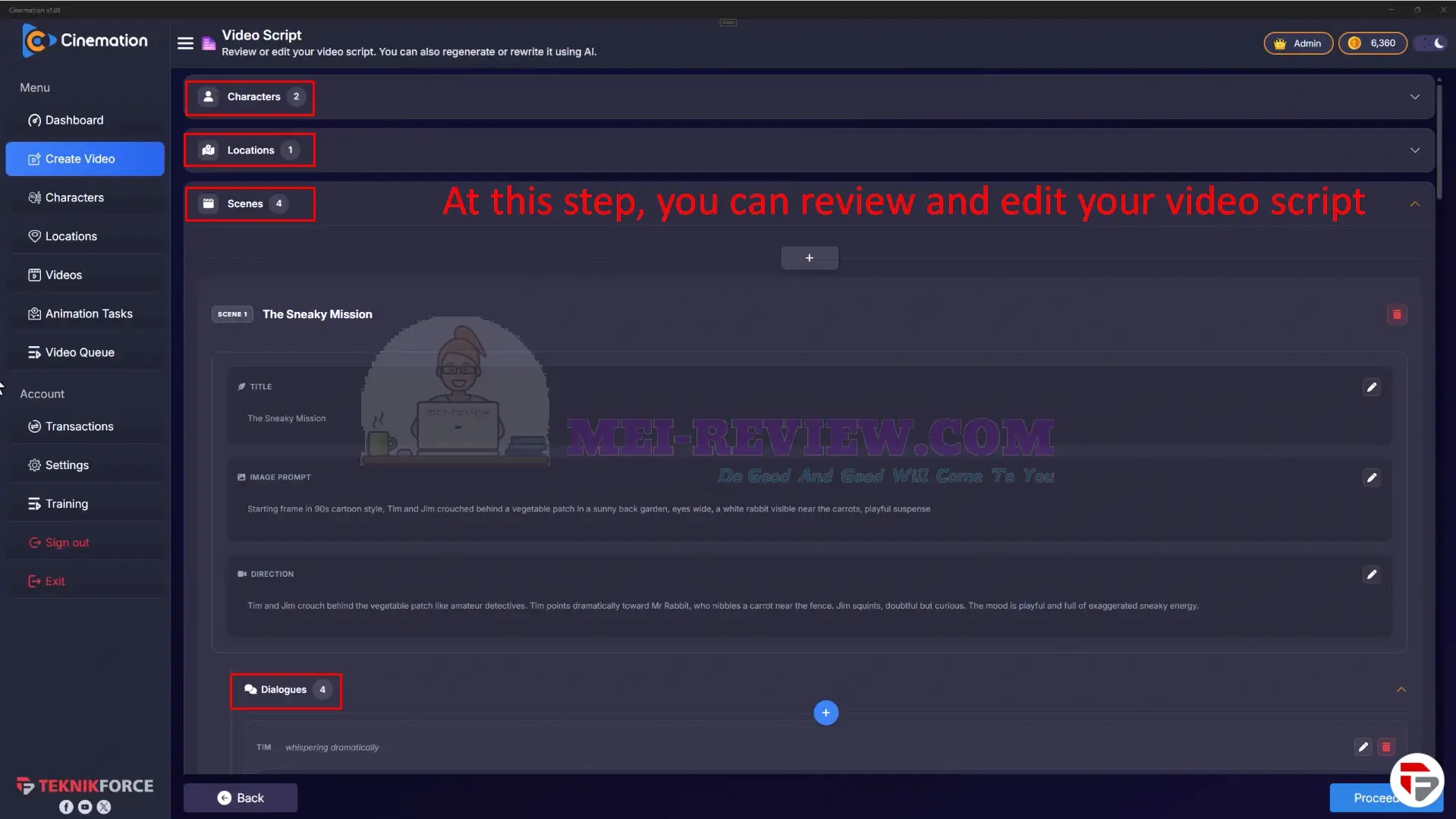
At this point, you can review and edit your script in detail, including characters, locations, scenes, and dialogue, before moving on to video generation:
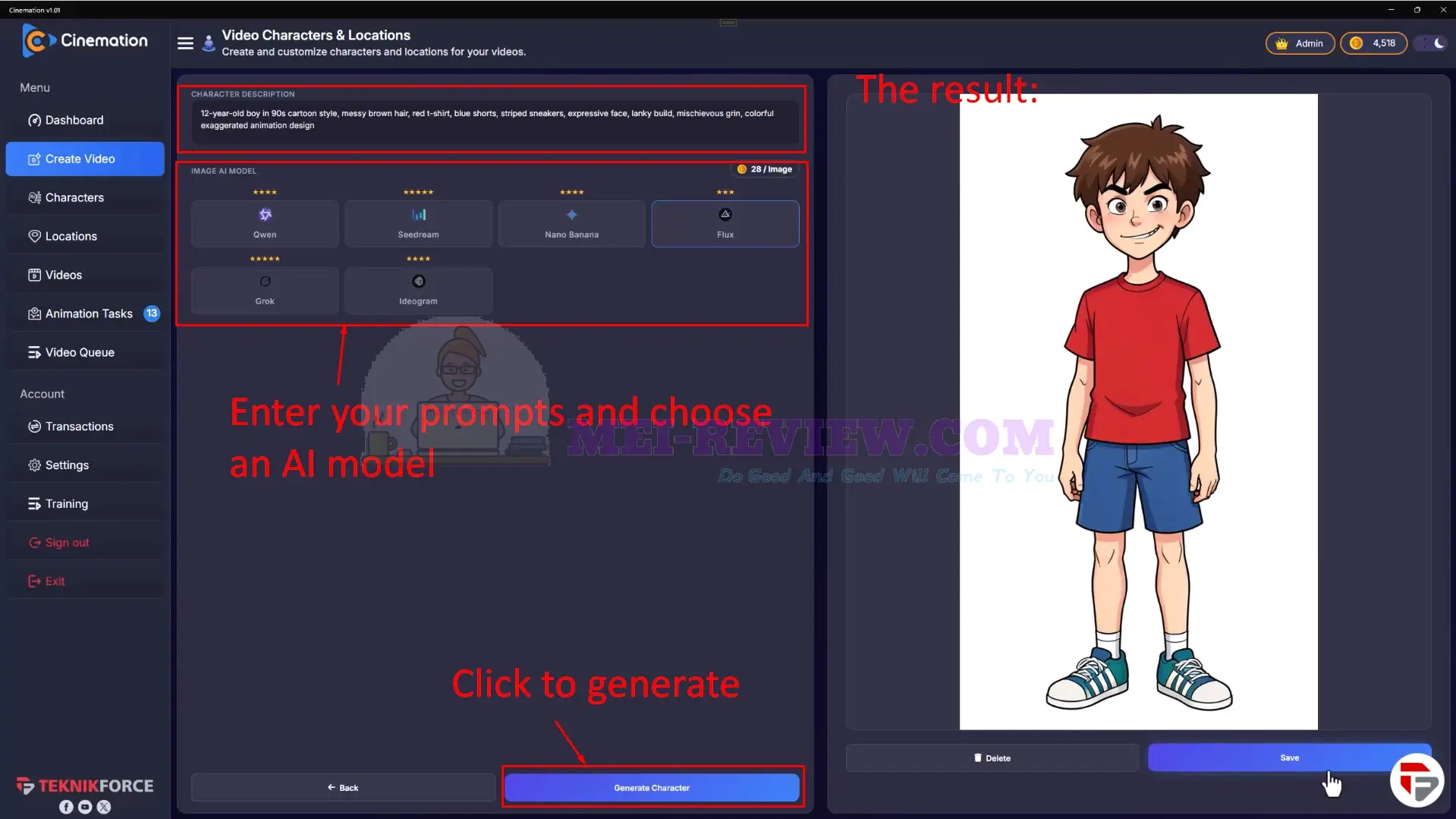
Then, create your characters by entering a short prompt and selecting an AI image model. The system quickly turns your description into a visual character ready for your video:
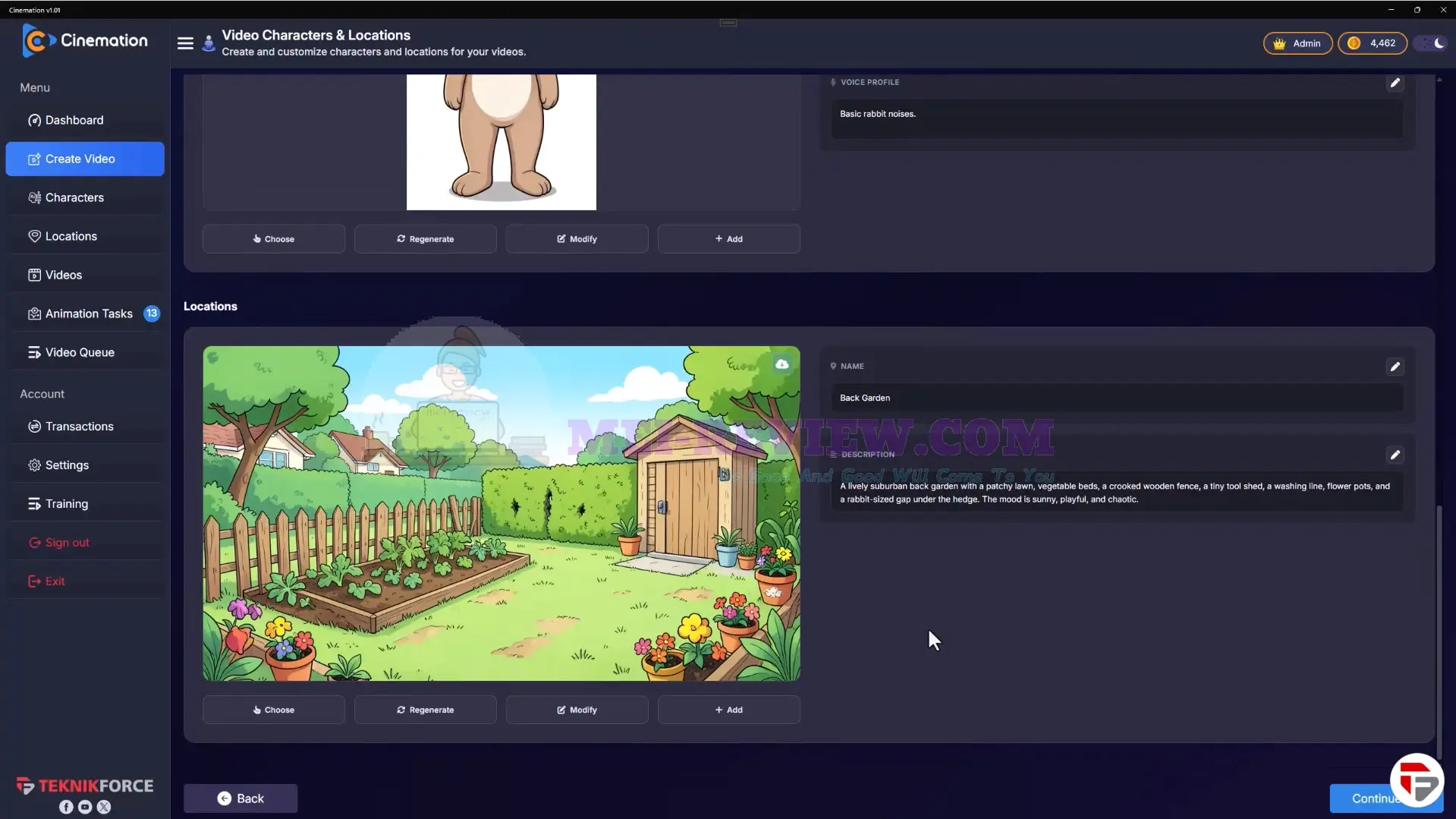
You can also generate locations the same way. Just enter a prompt, and the AI creates a scene for your background. Click Continue to move forward:
[+] Customize Your Video
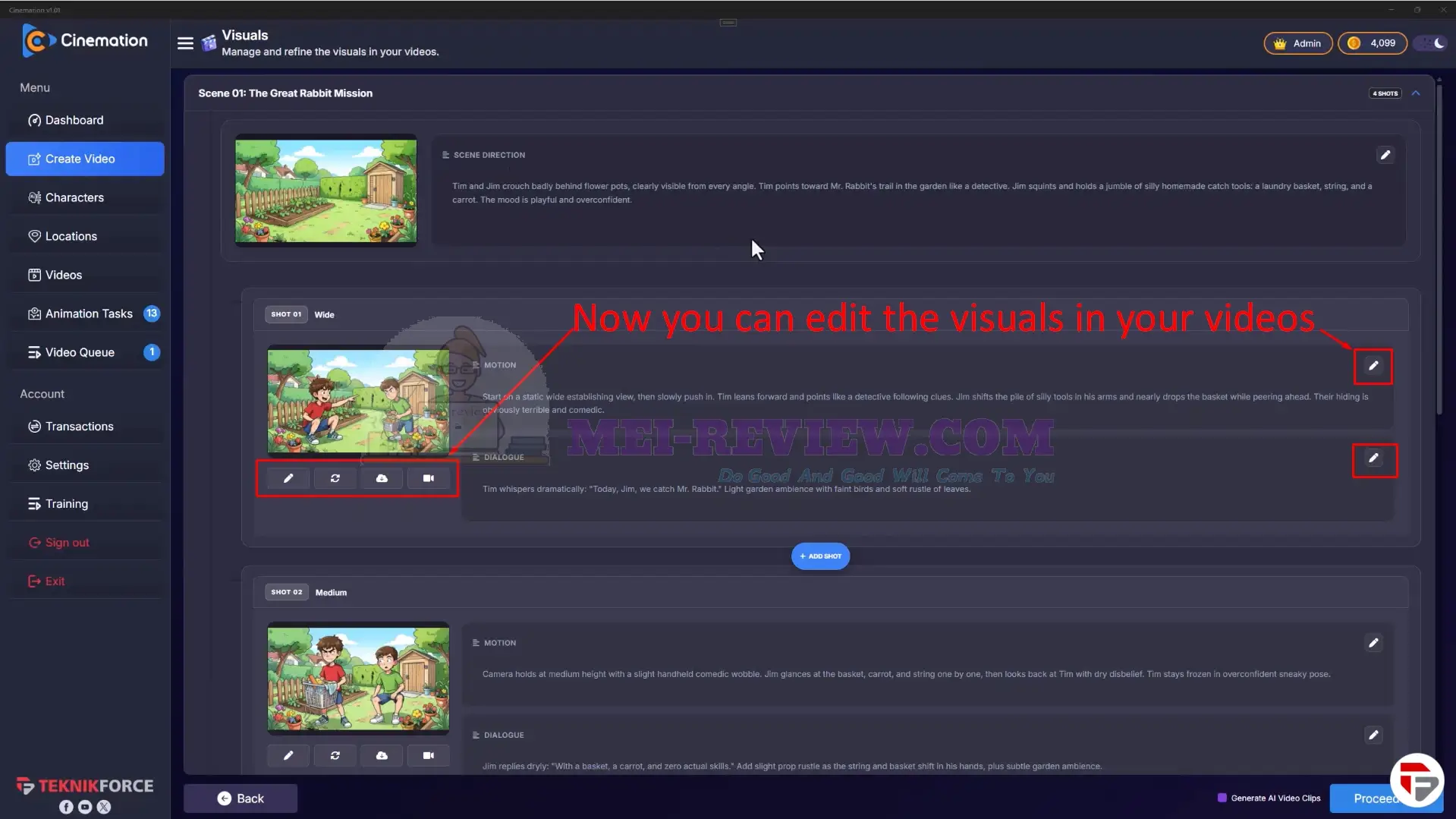
Once your scenes are ready, you can go through each one, make edits to visuals, motion, and dialogue, and fine-tune everything before finalizing. Click “Proceed“to continue:
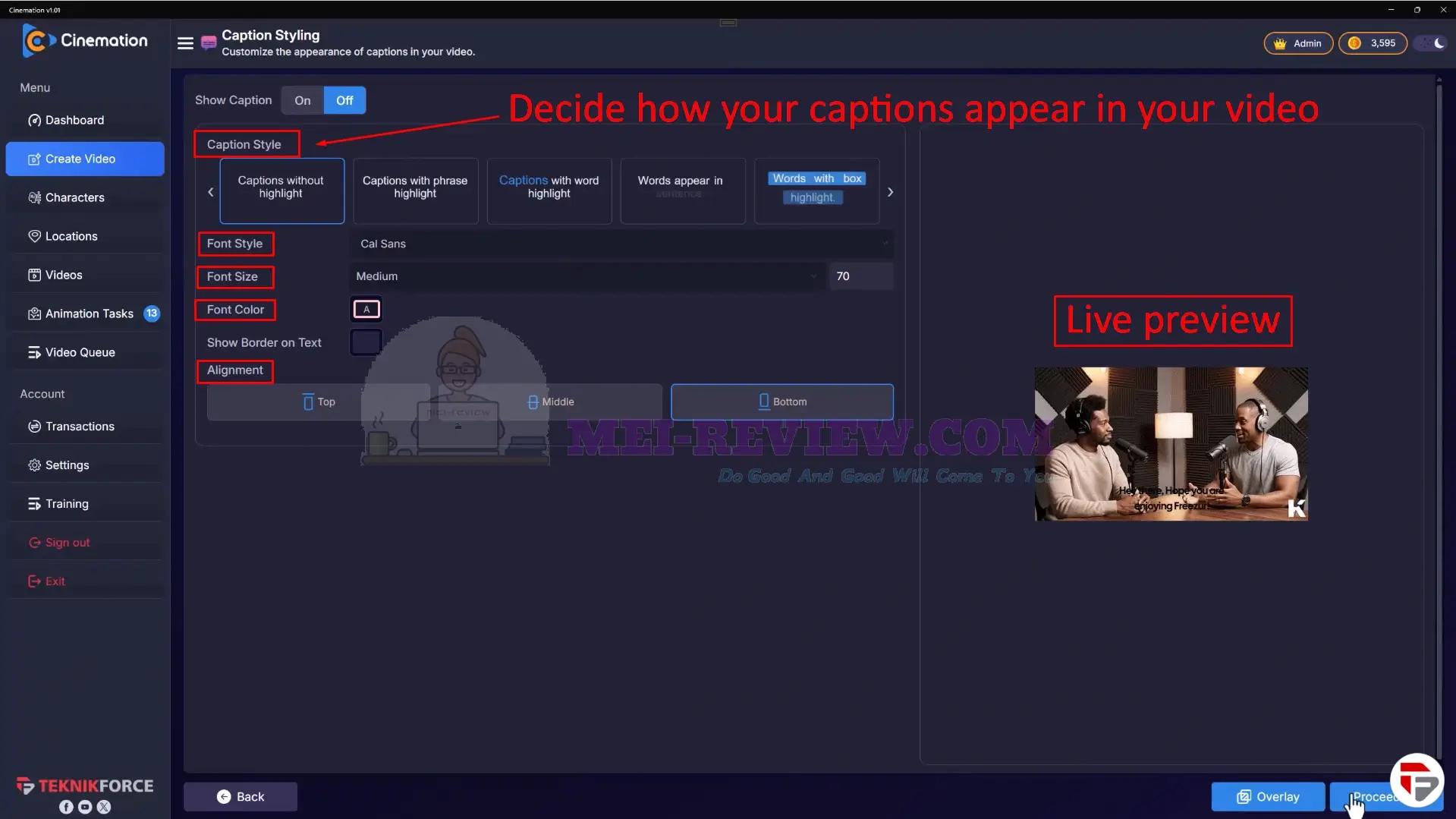
You also have control over how captions appear. You can adjust the style, font, size, color, and alignment, with a live preview showing changes instantly:
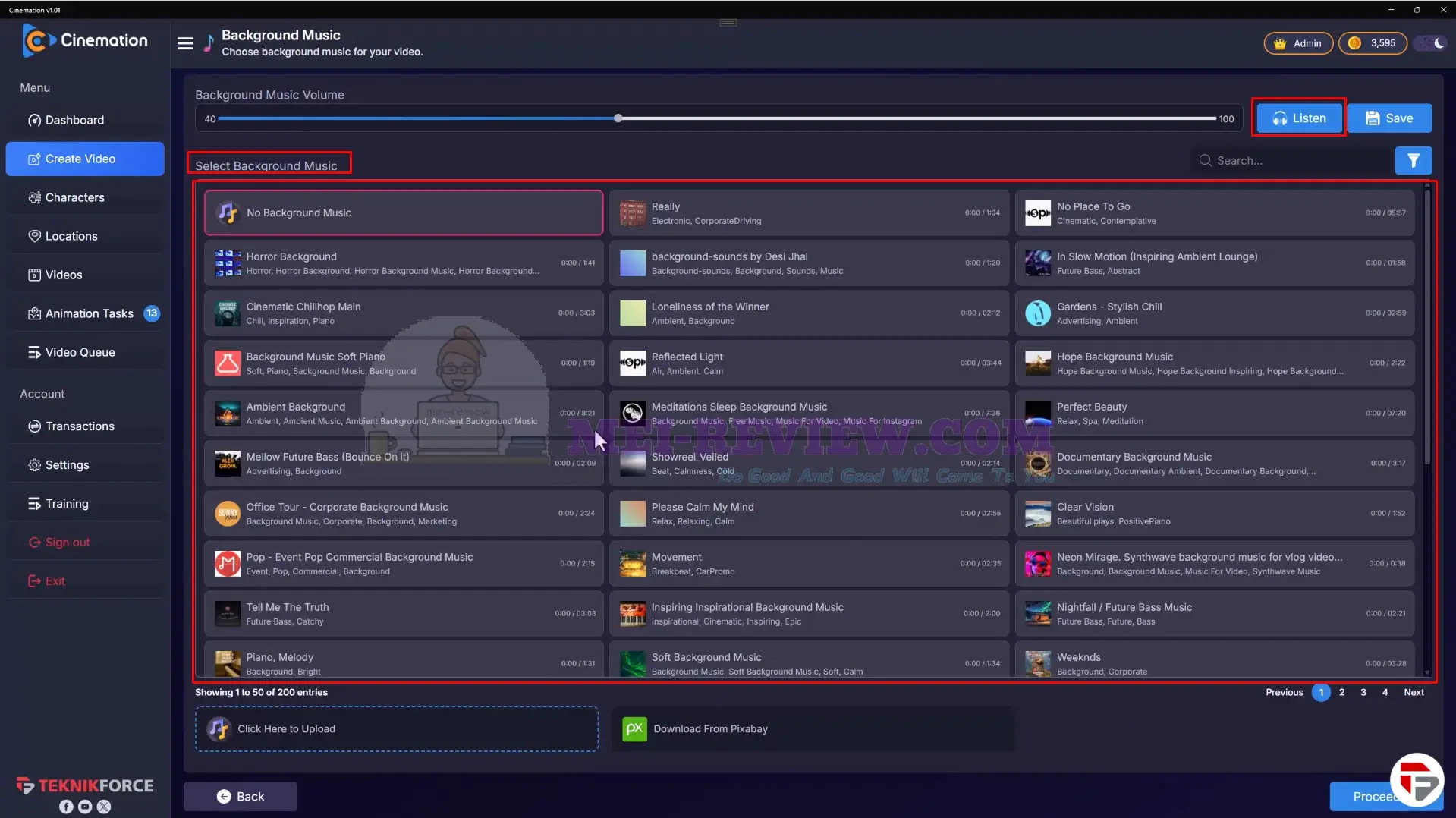
For audio, you can choose background music, adjust the volume, and preview tracks before adding them to your video:
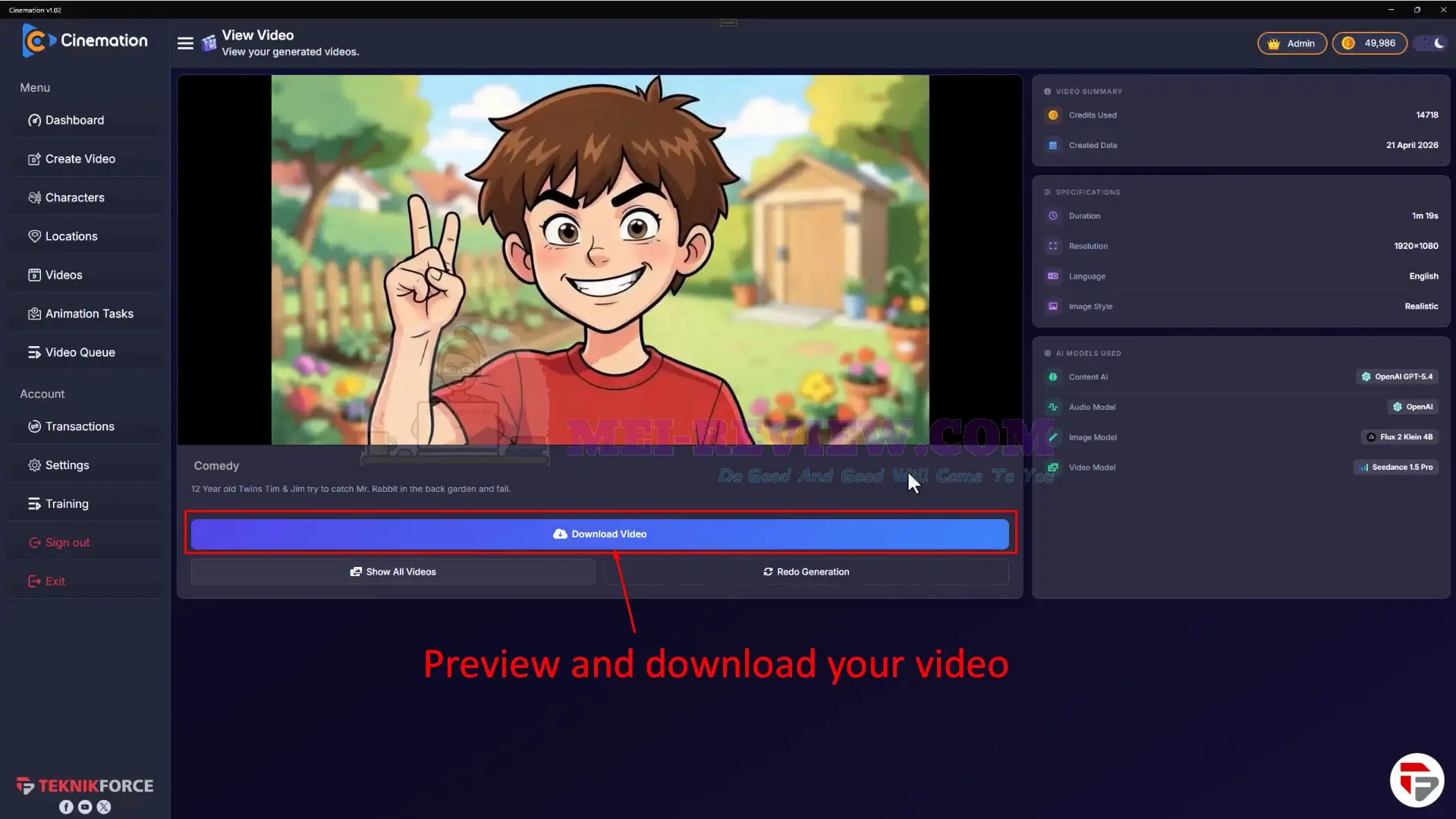
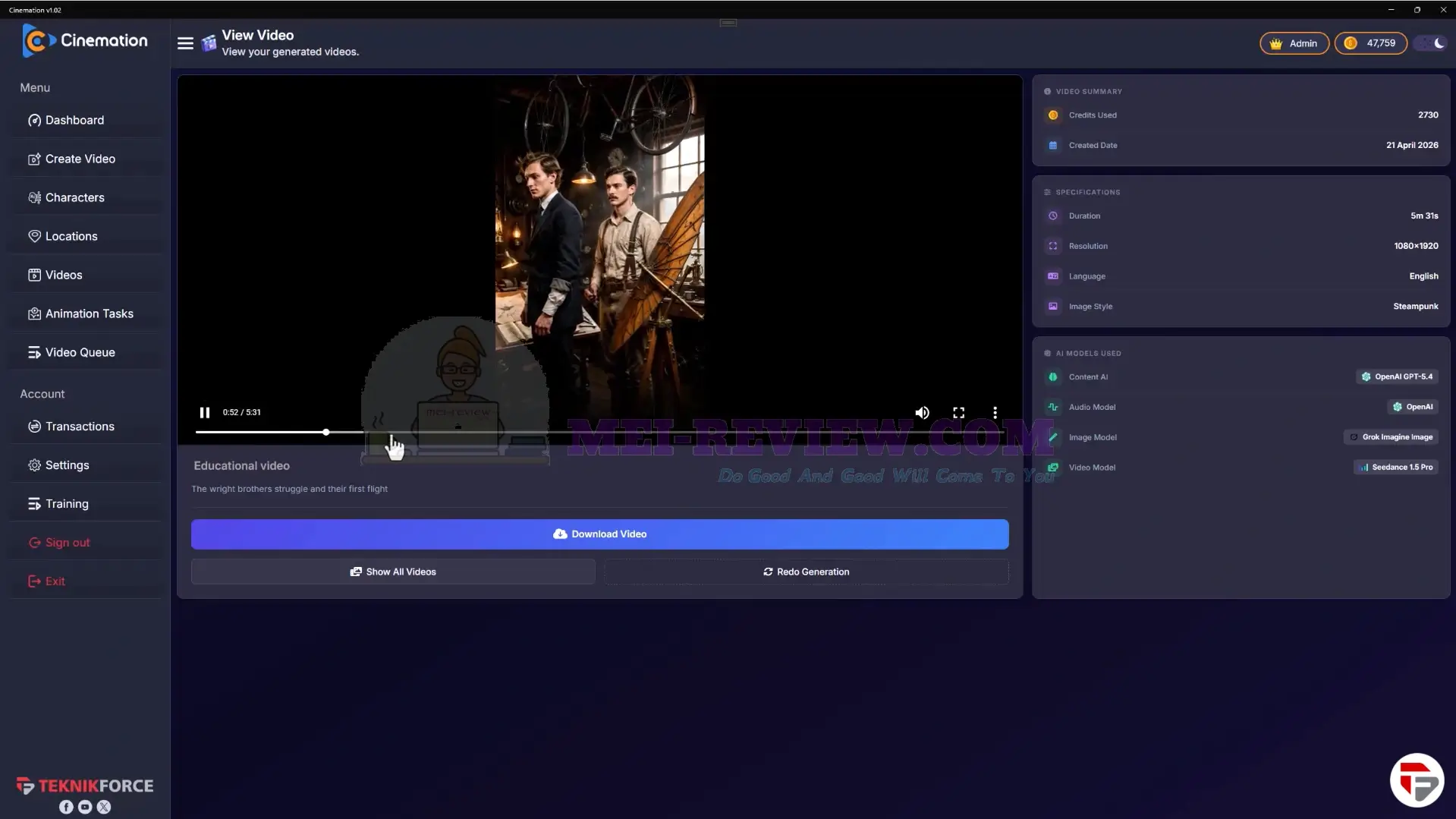
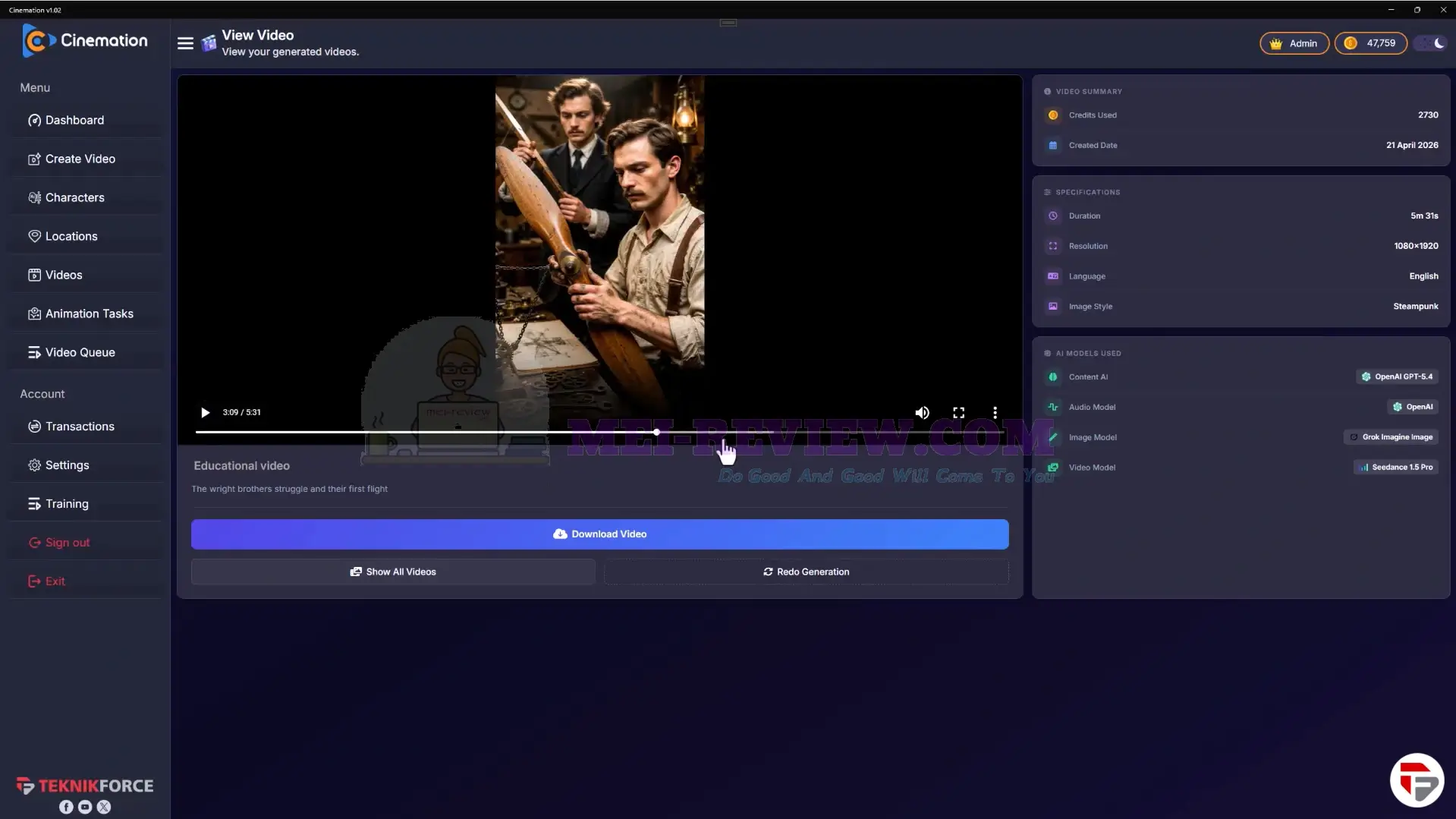
This is the result generated from the setup:
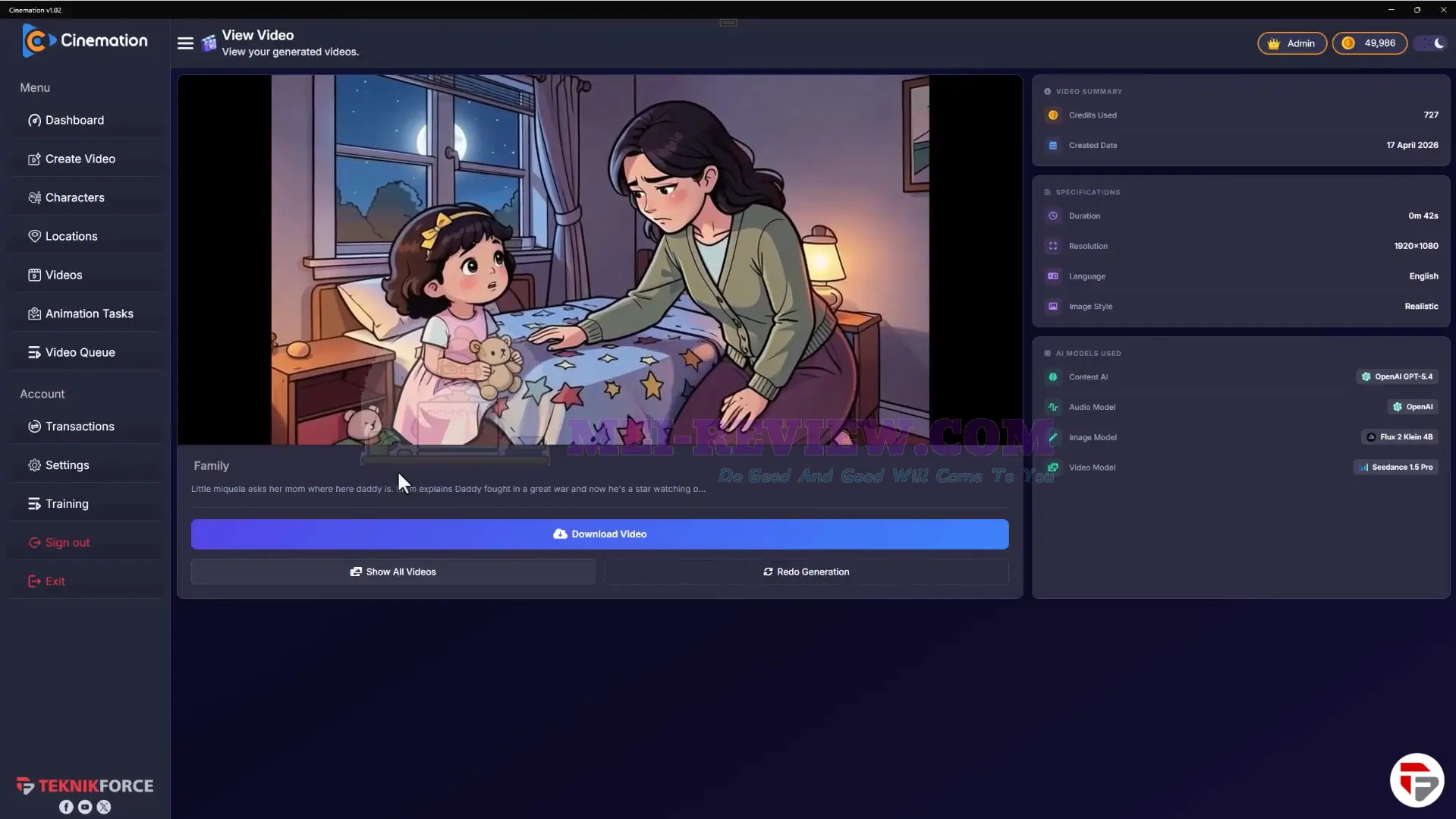
Here are more results created with Cinemation:
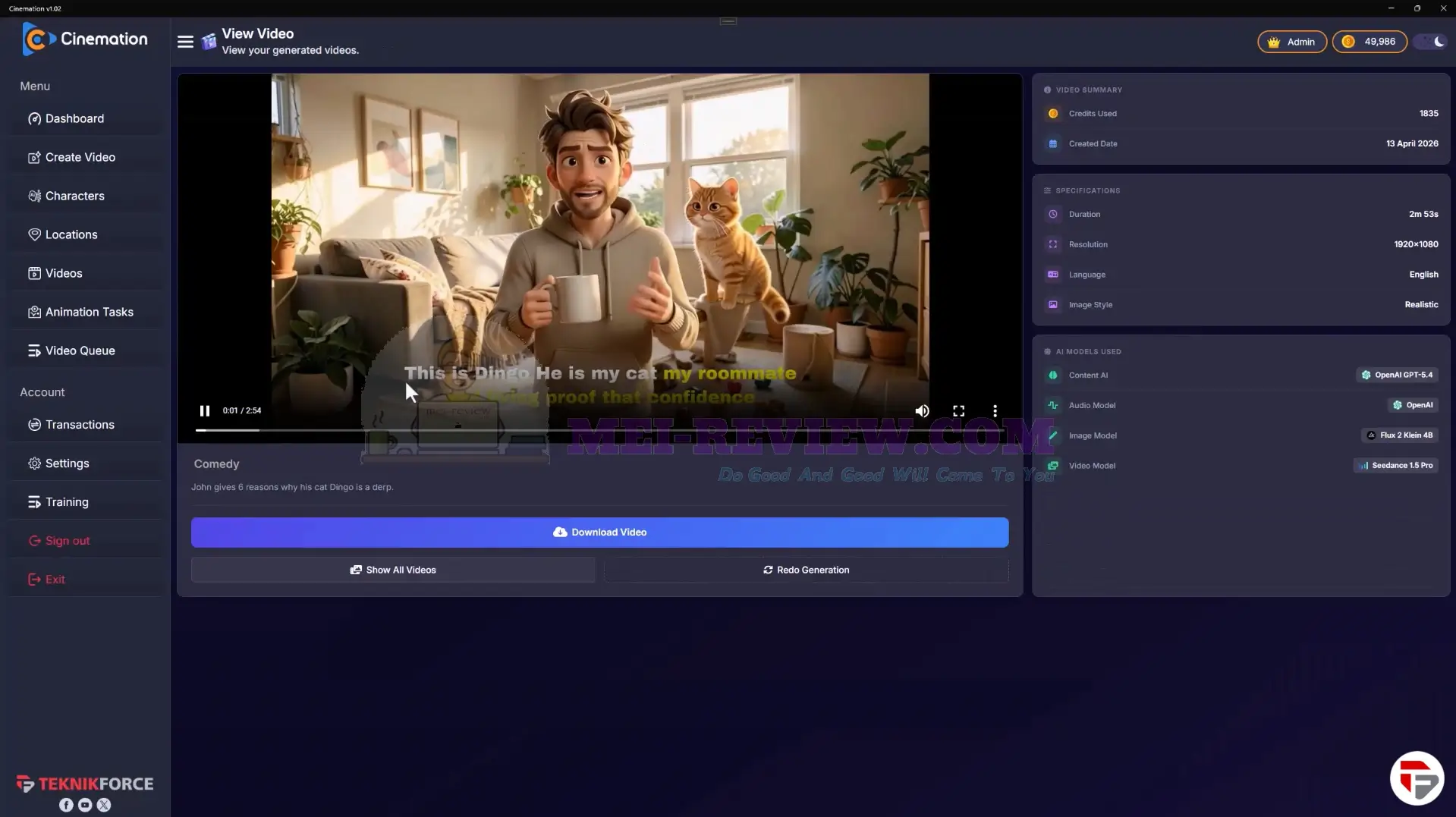
Now let’s look at how to create a Narration Video.
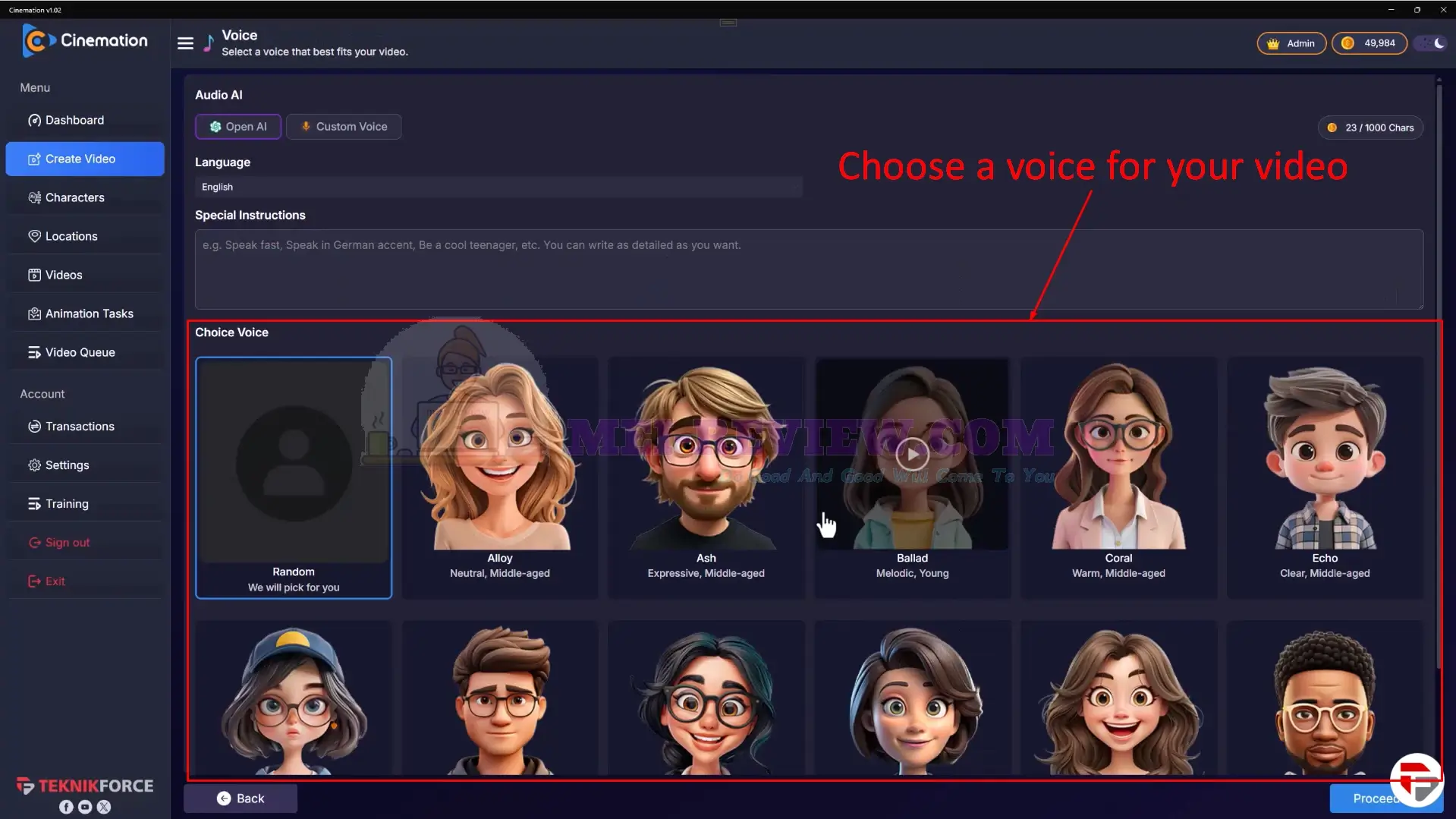
The overall process follows the same steps as the dialog format. Since narration focuses more on voice, you can select a voice that matches your content in the Voice section:
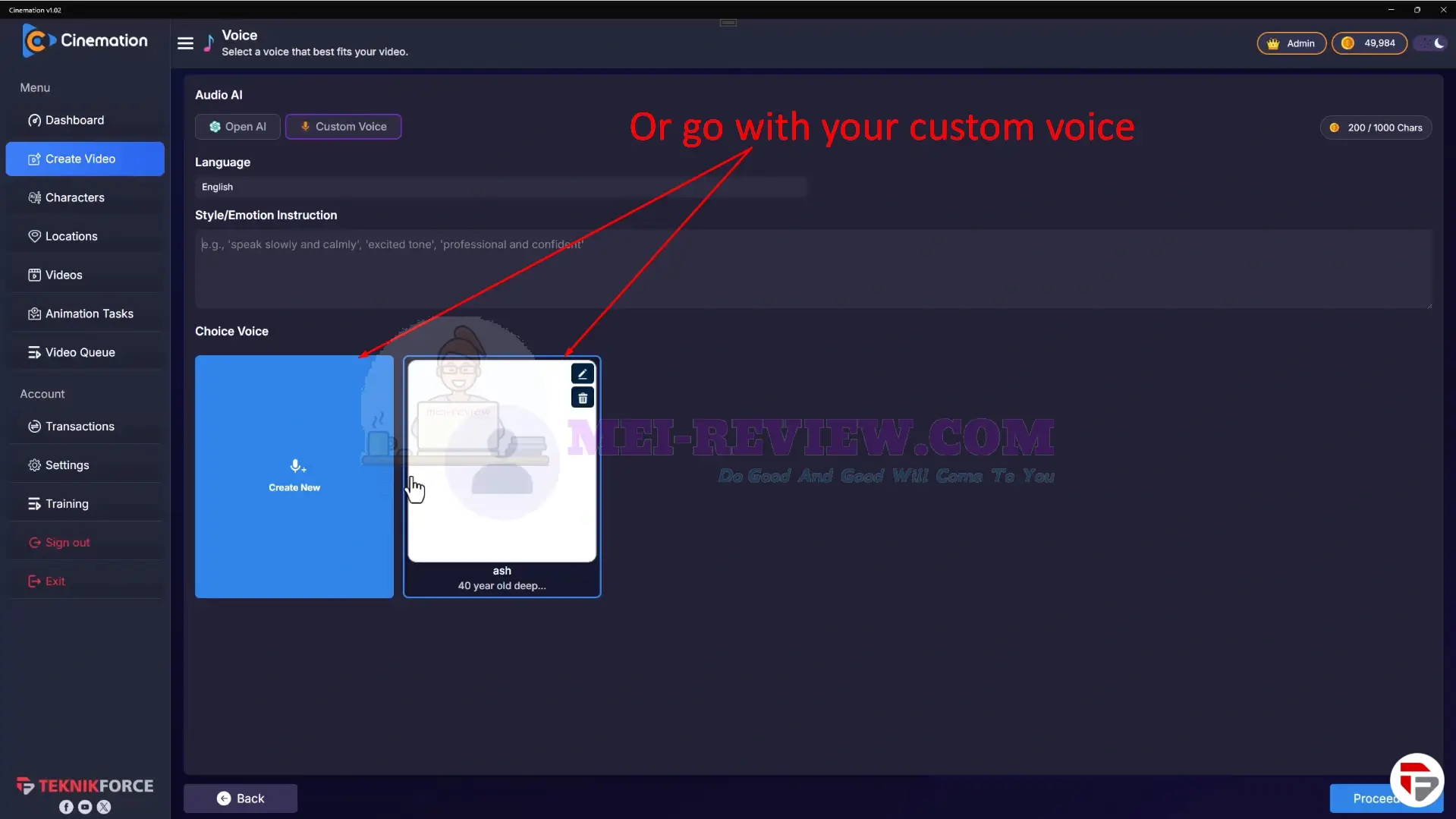
You also have the option to upload or create a custom voice if you want more control over how it sounds:
From there, you can continue refining your characters and scenes, then generate your final video:
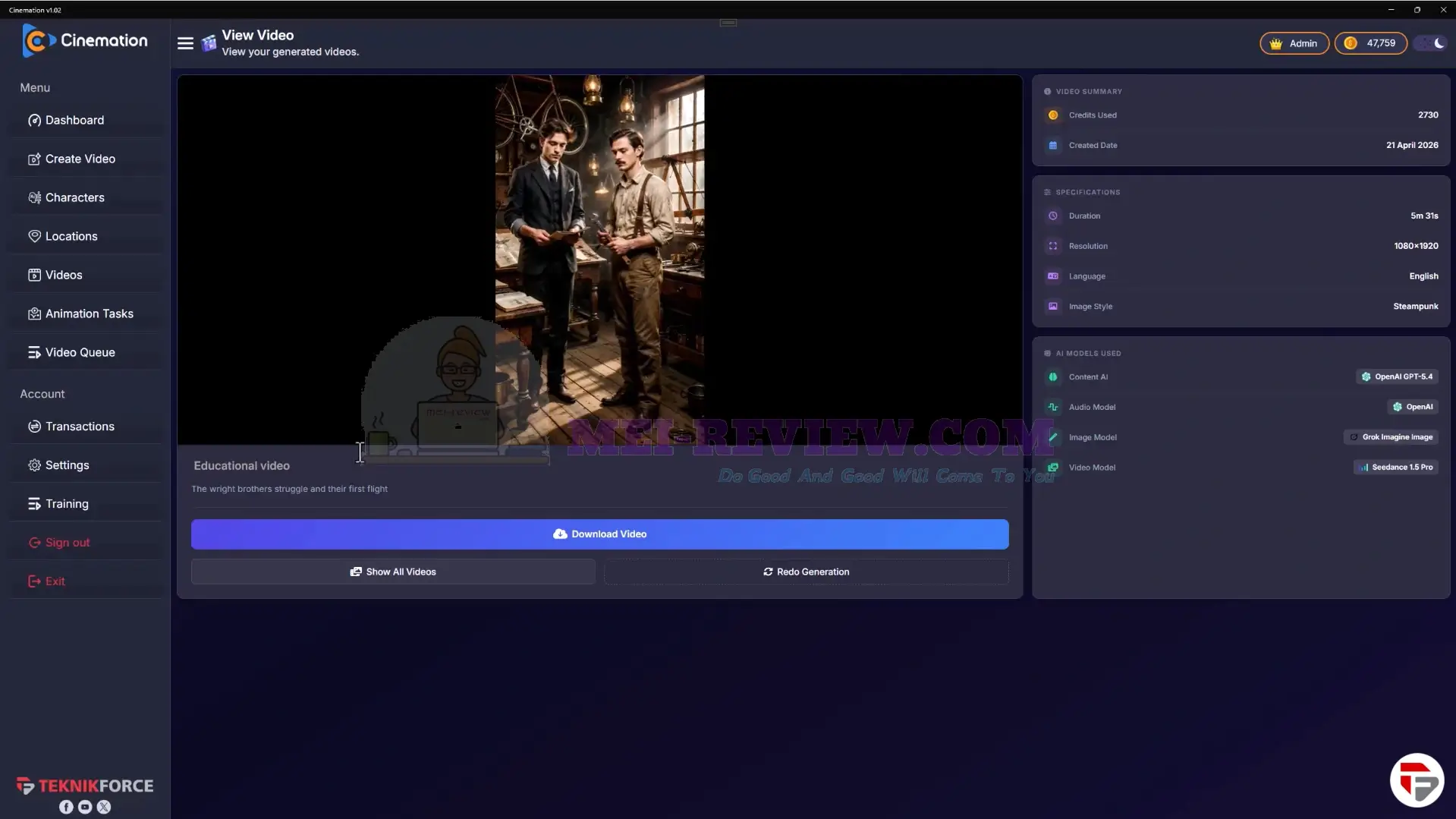
Cinemation Demo Video