




















The Platform Walkthrough
Enter your login details to open the AI OTT Stream Builder dashboard.
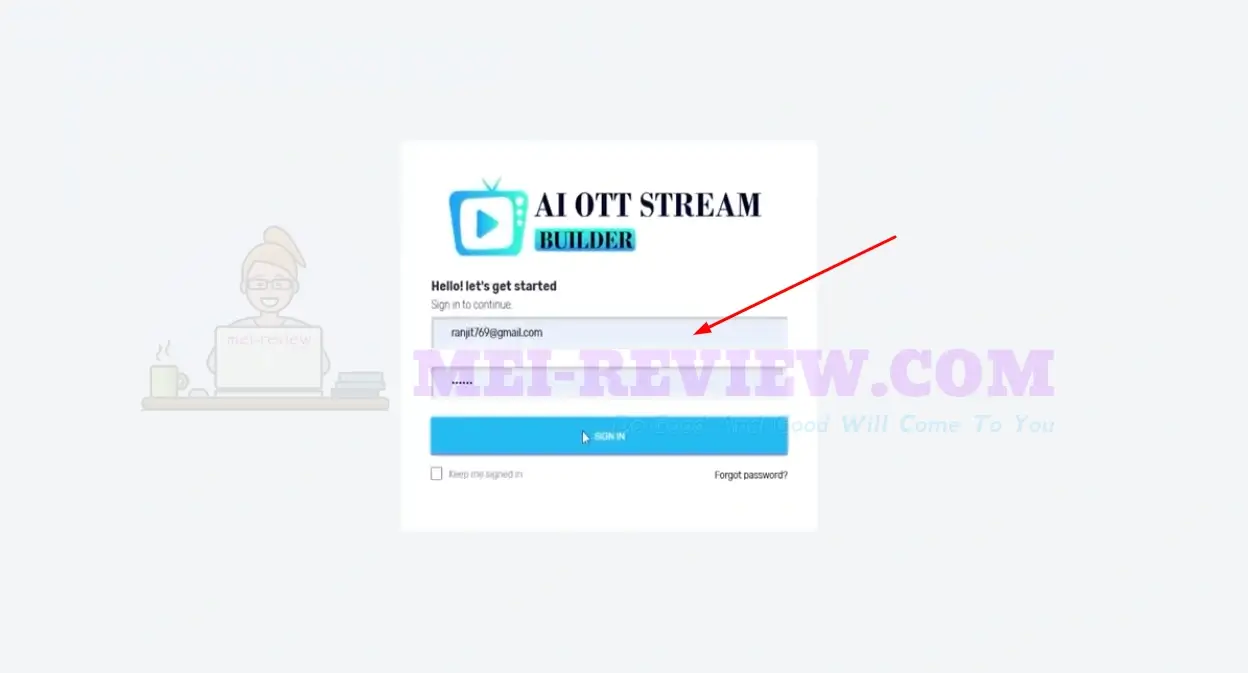
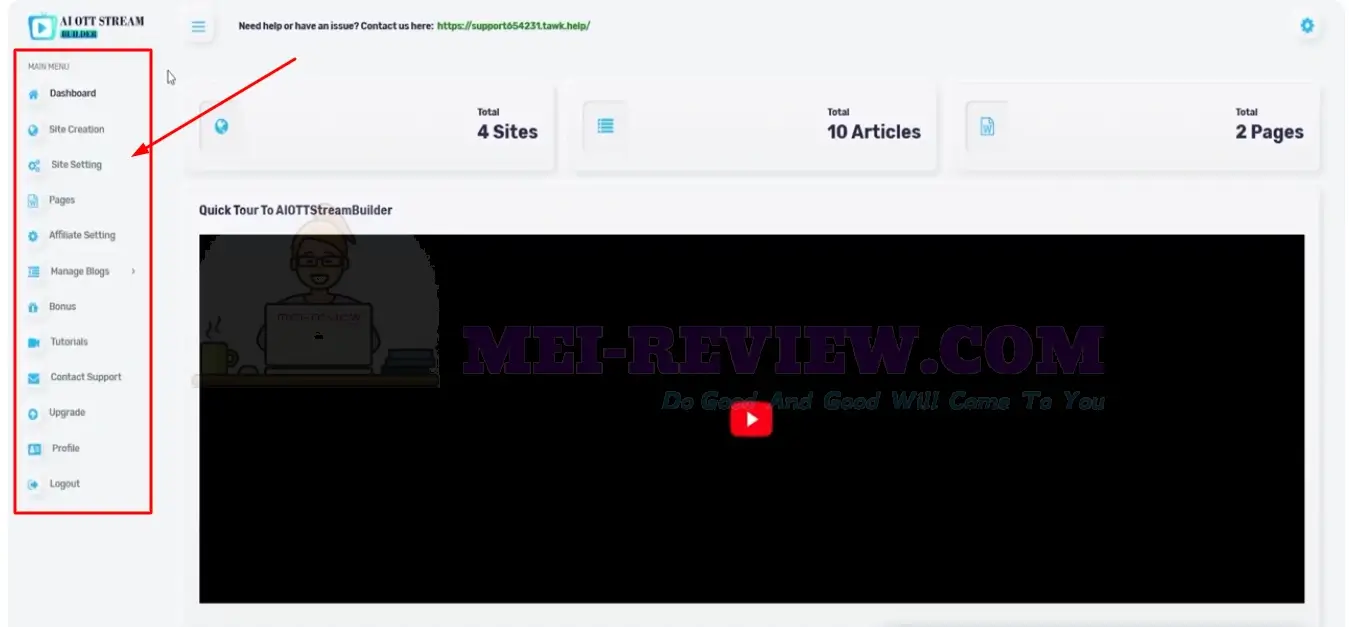
Use the menu on the left side to move through the dashboard features and platform settings.
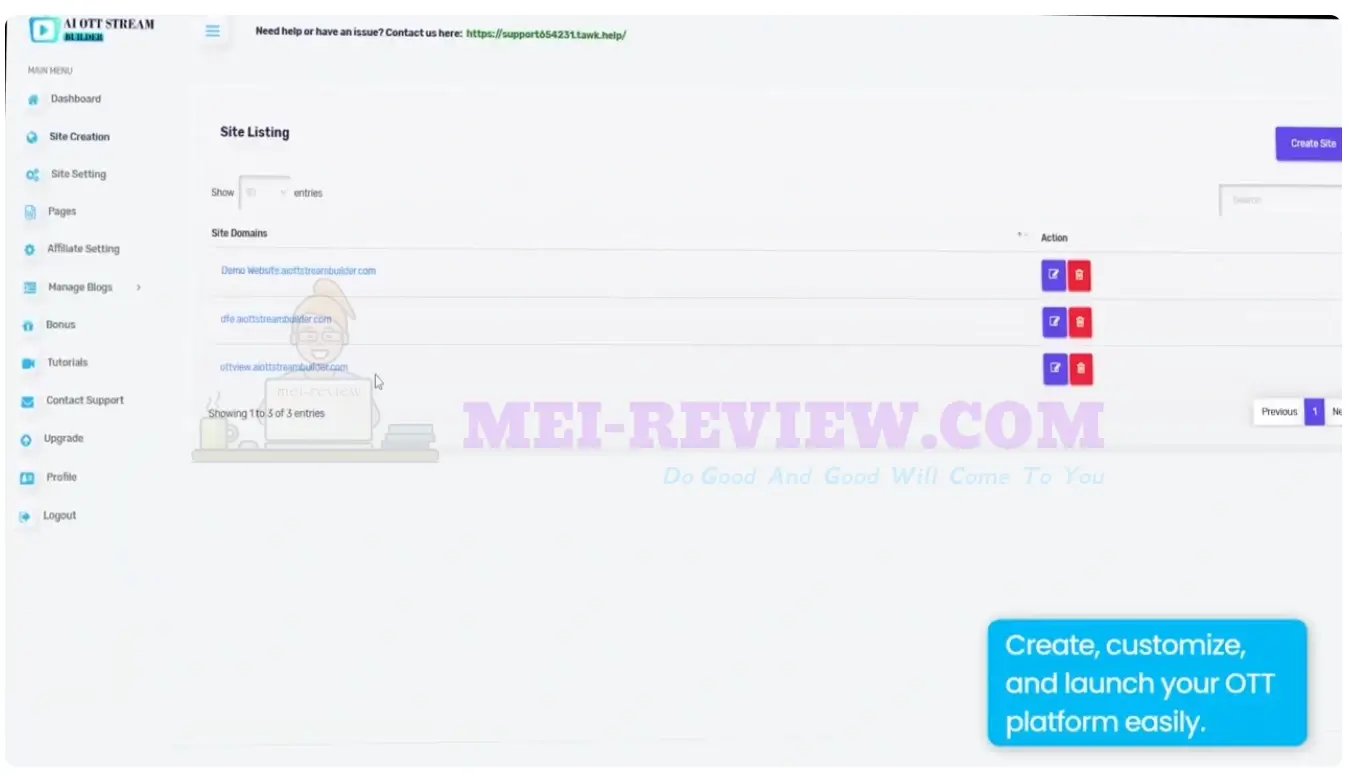
Go to the Site Listing section to view and manage all your OTT websites.
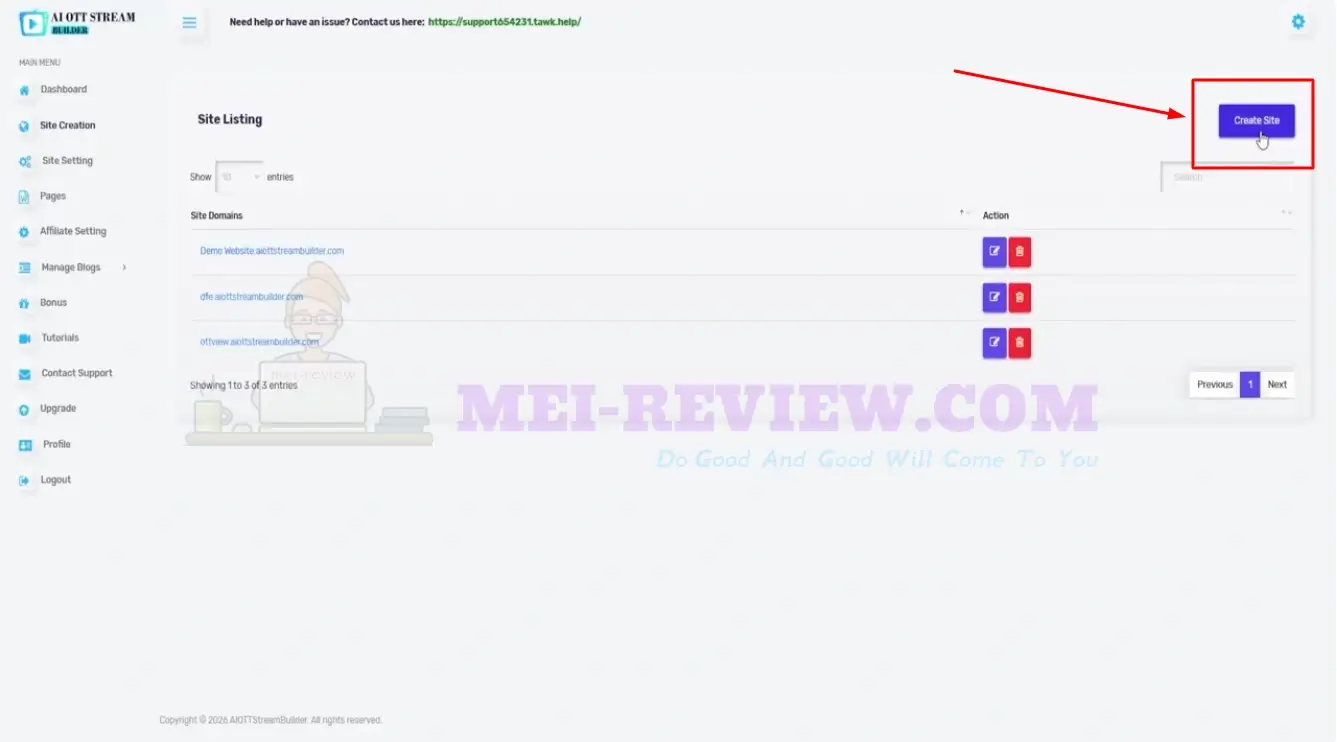
Click the Create Site button when you want to start a new OTT streaming platform.
Choose the type of site you want to create, add your subdomain name, and upload your platform logo to begin the setup.
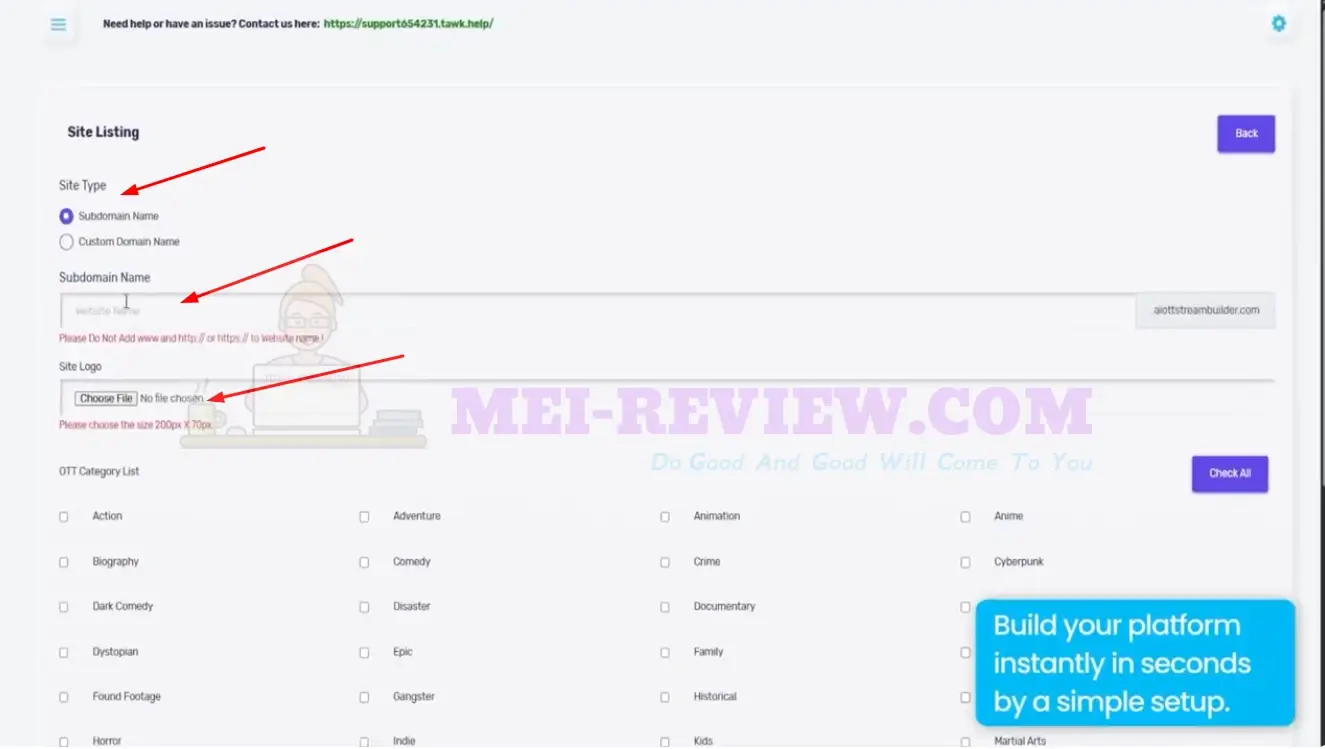
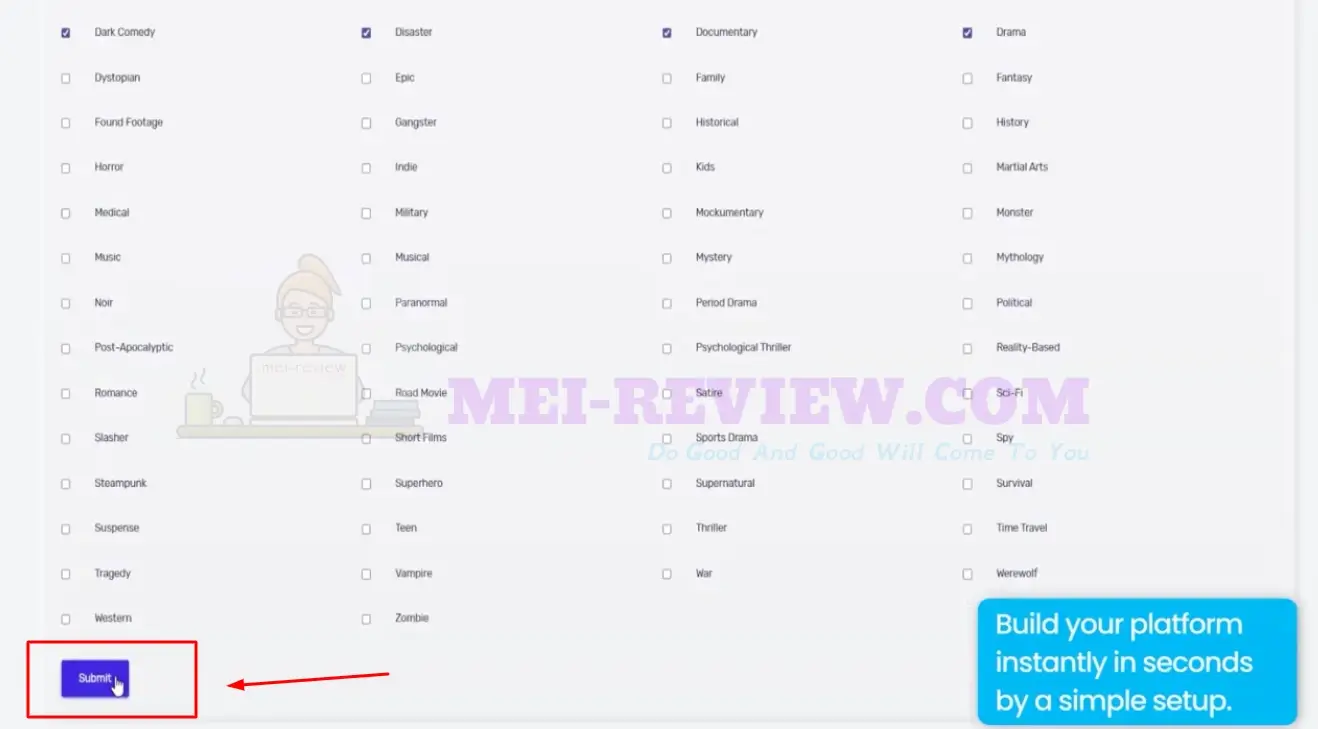
Pick the content categories you want to include, then click Submit to move forward.
Preview your OTT website to see how your streaming content will look when visitors open your platform.
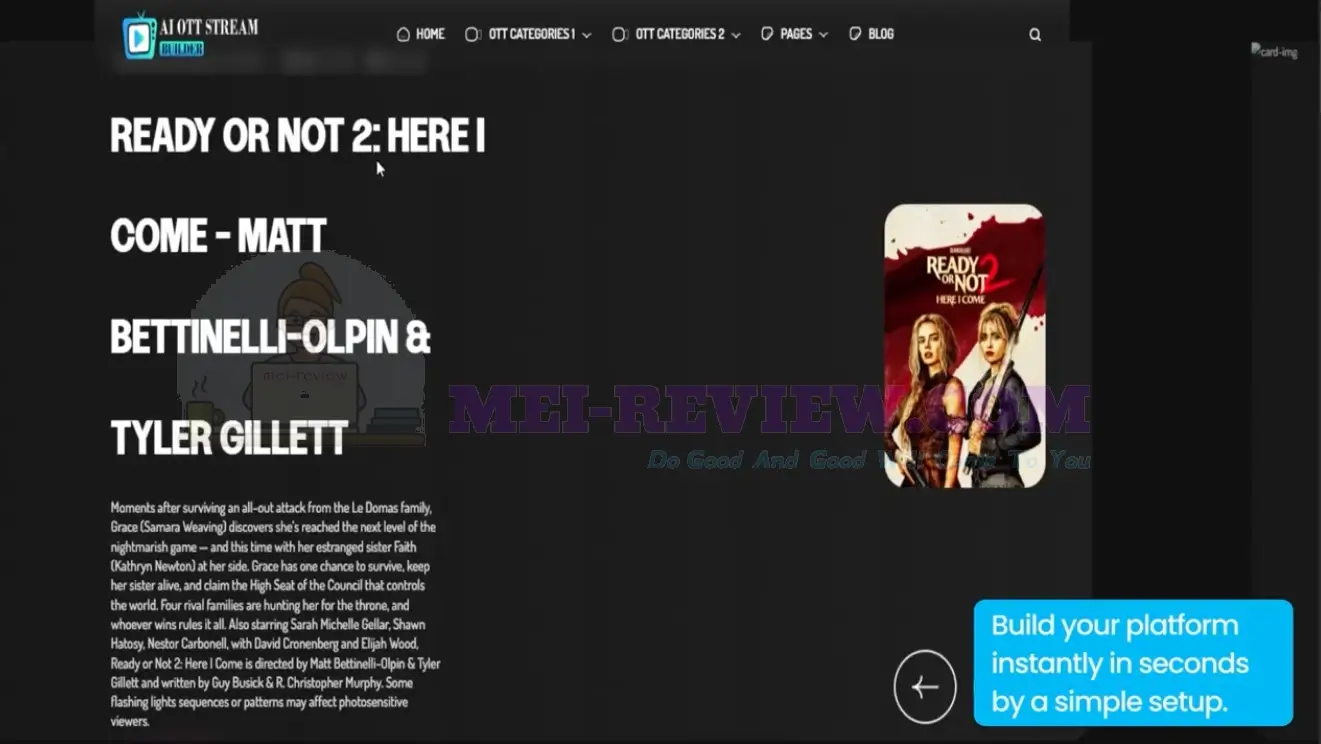
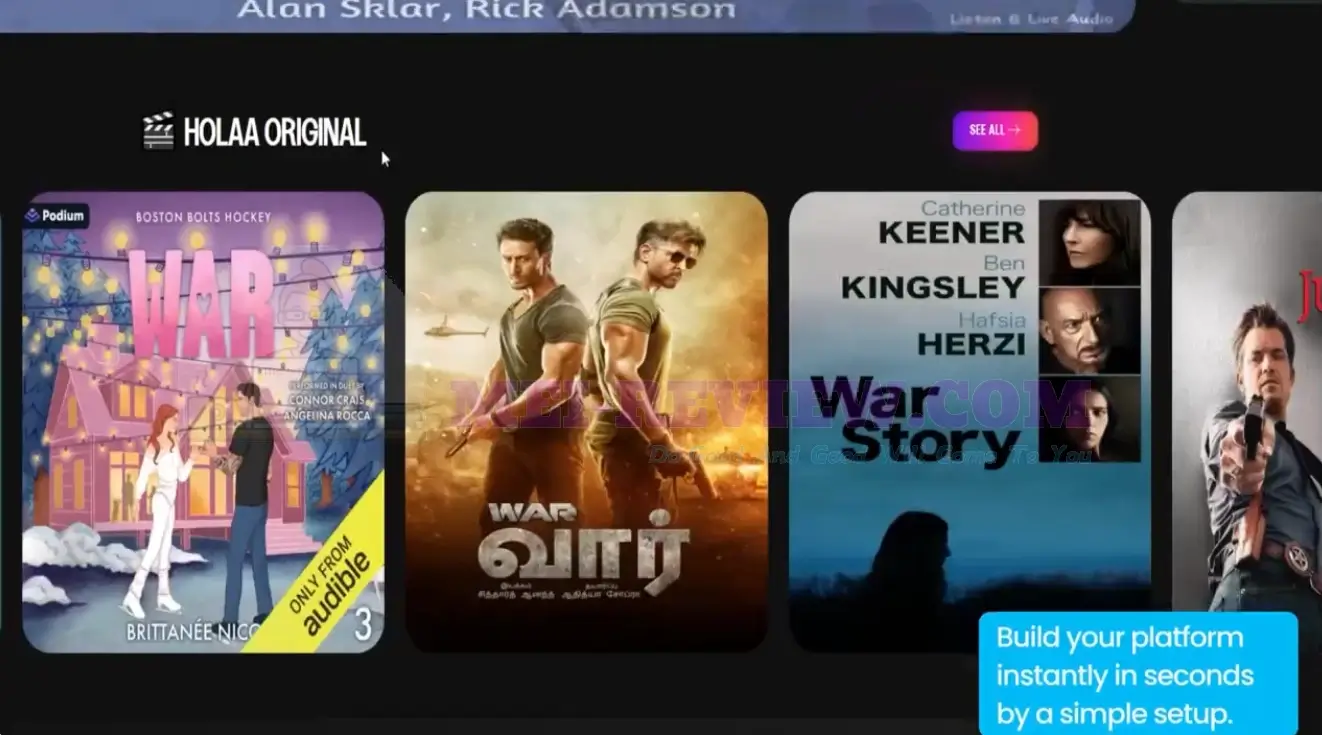
Open the Site Setting area to adjust your OTT platform’s design, preferences, and setup options.
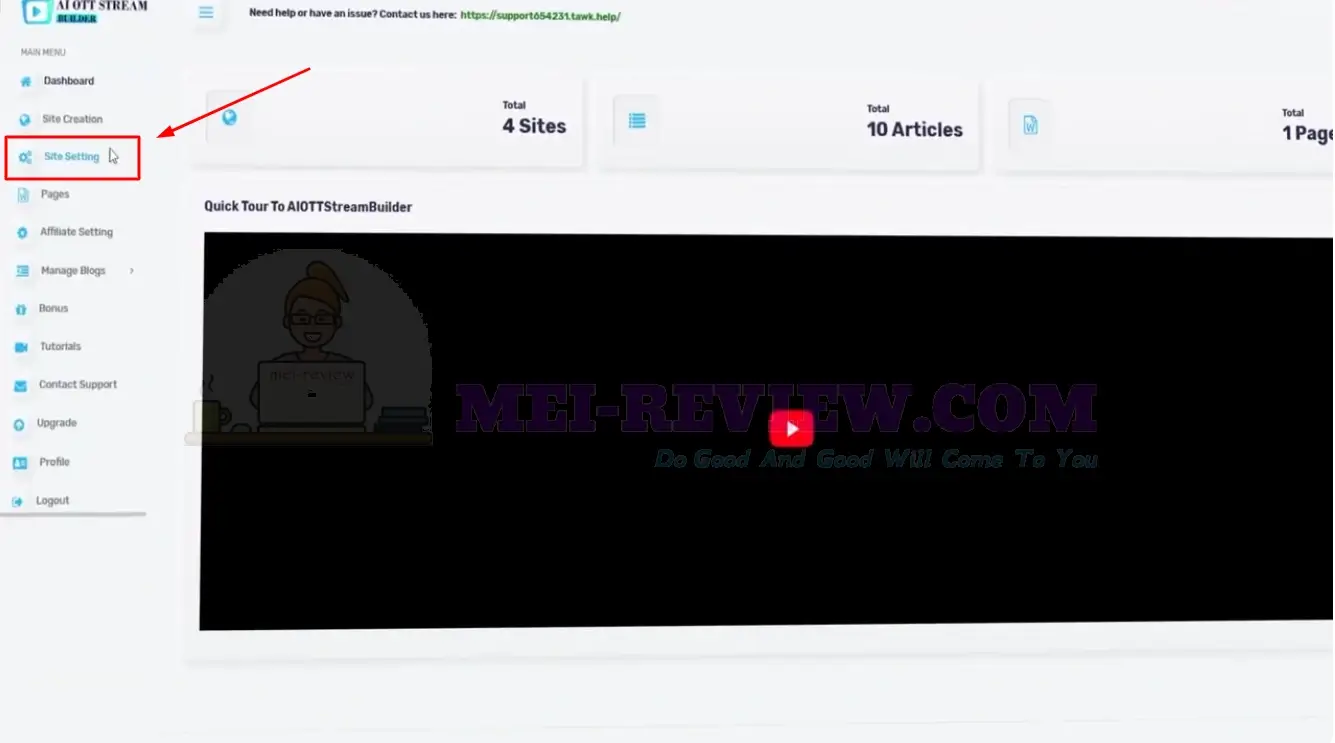
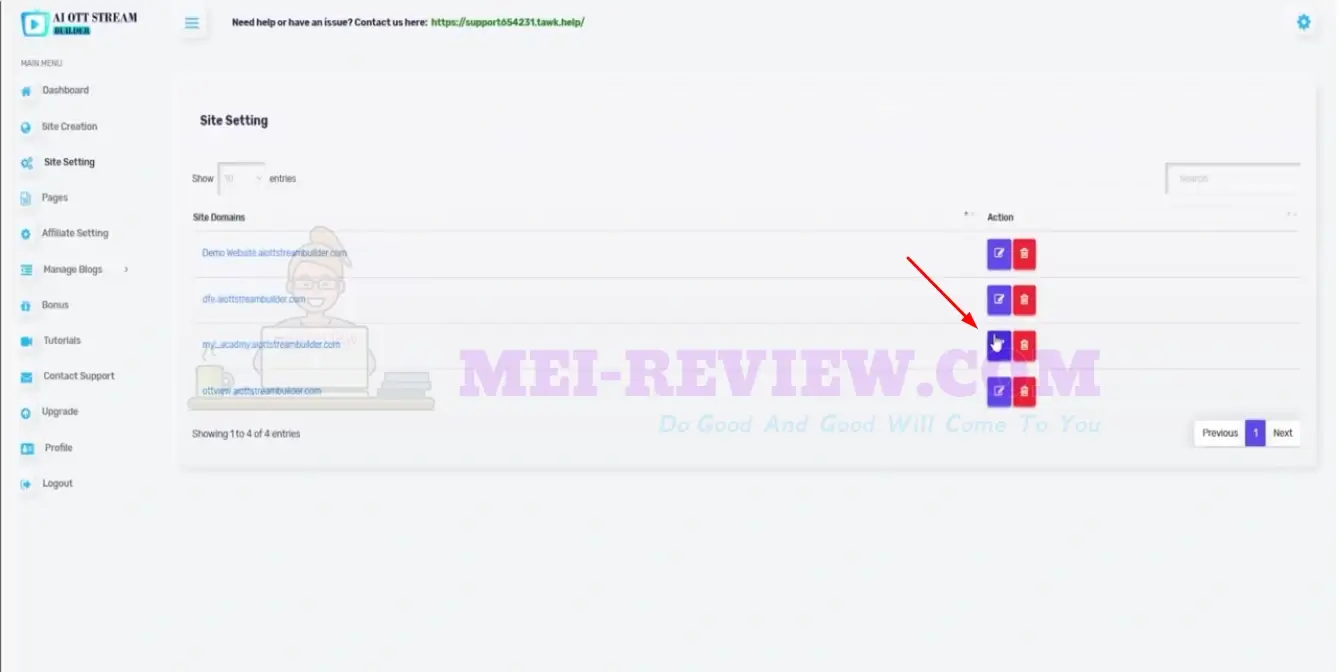
Use the Site Setting panel to fine-tune how your OTT platform looks and works.
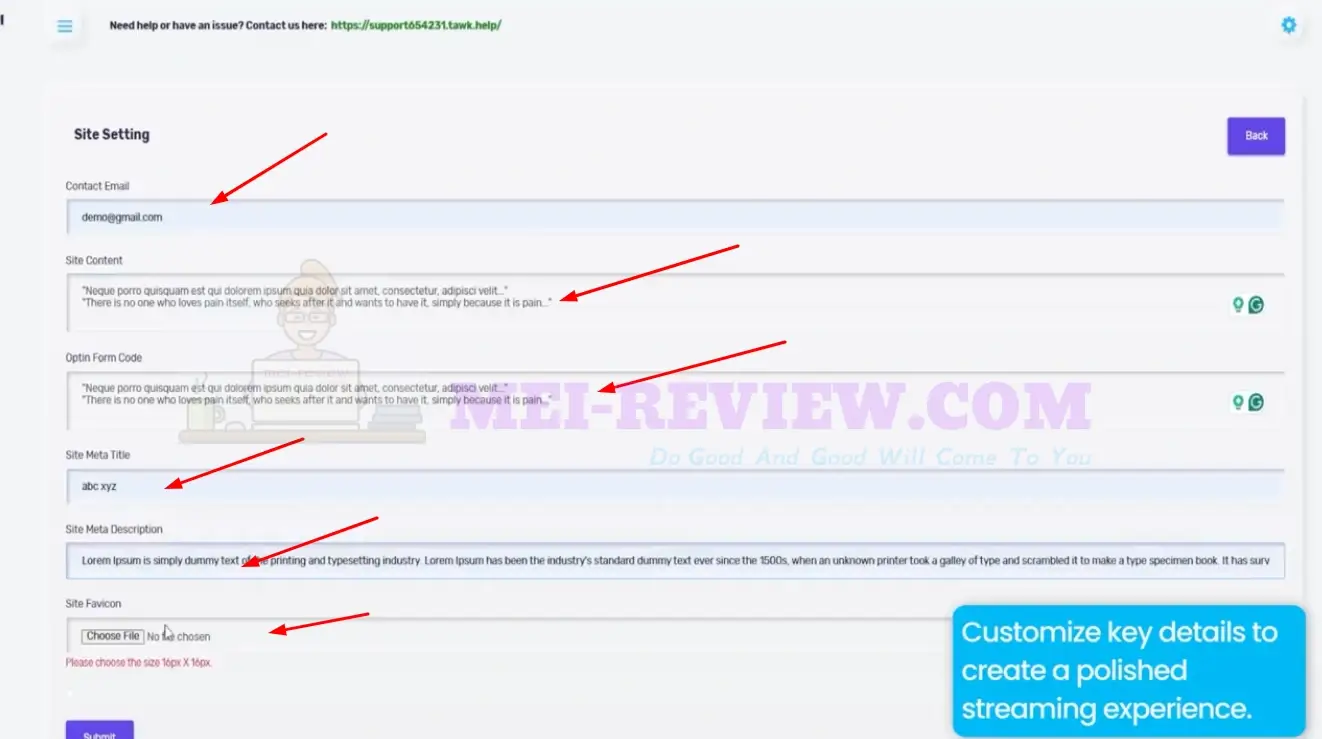
Add your site details, enter the SEO information, and upload a favicon to give your platform a more branded appearance.
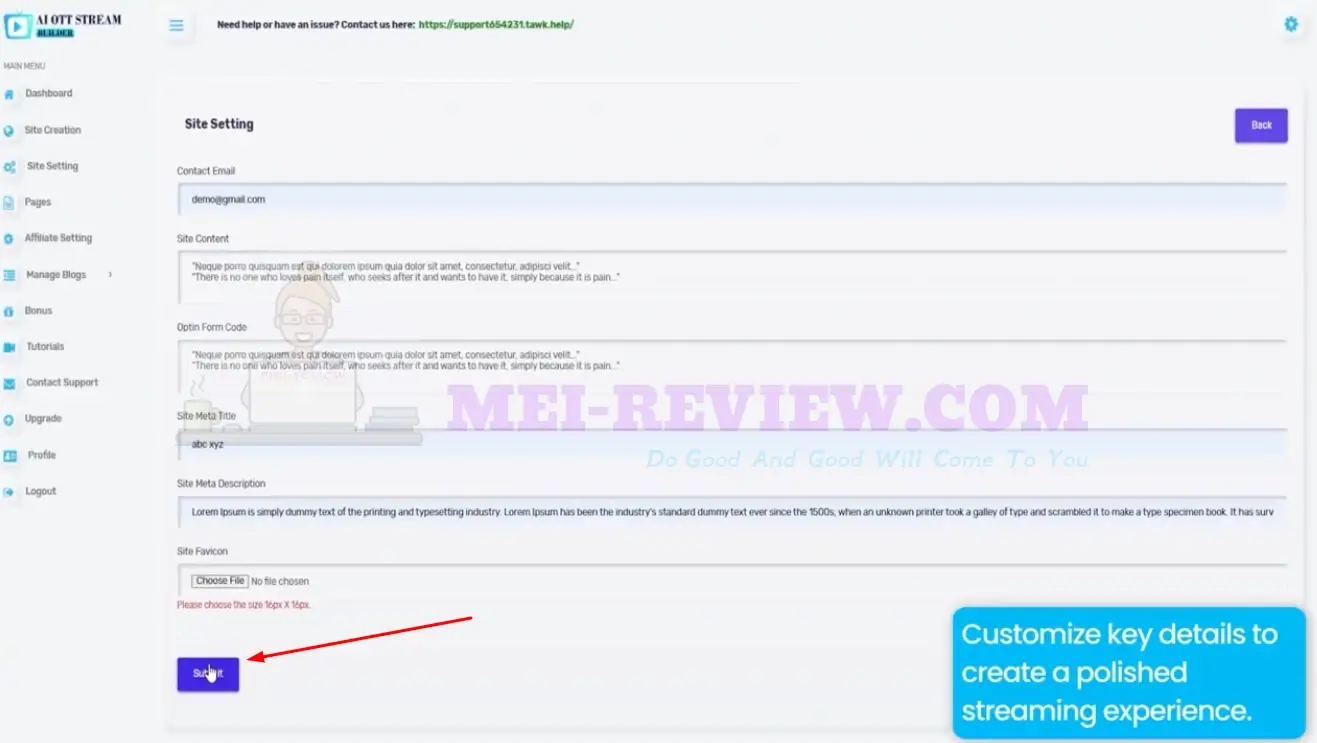
Click Submit to save your site settings and apply the updates.
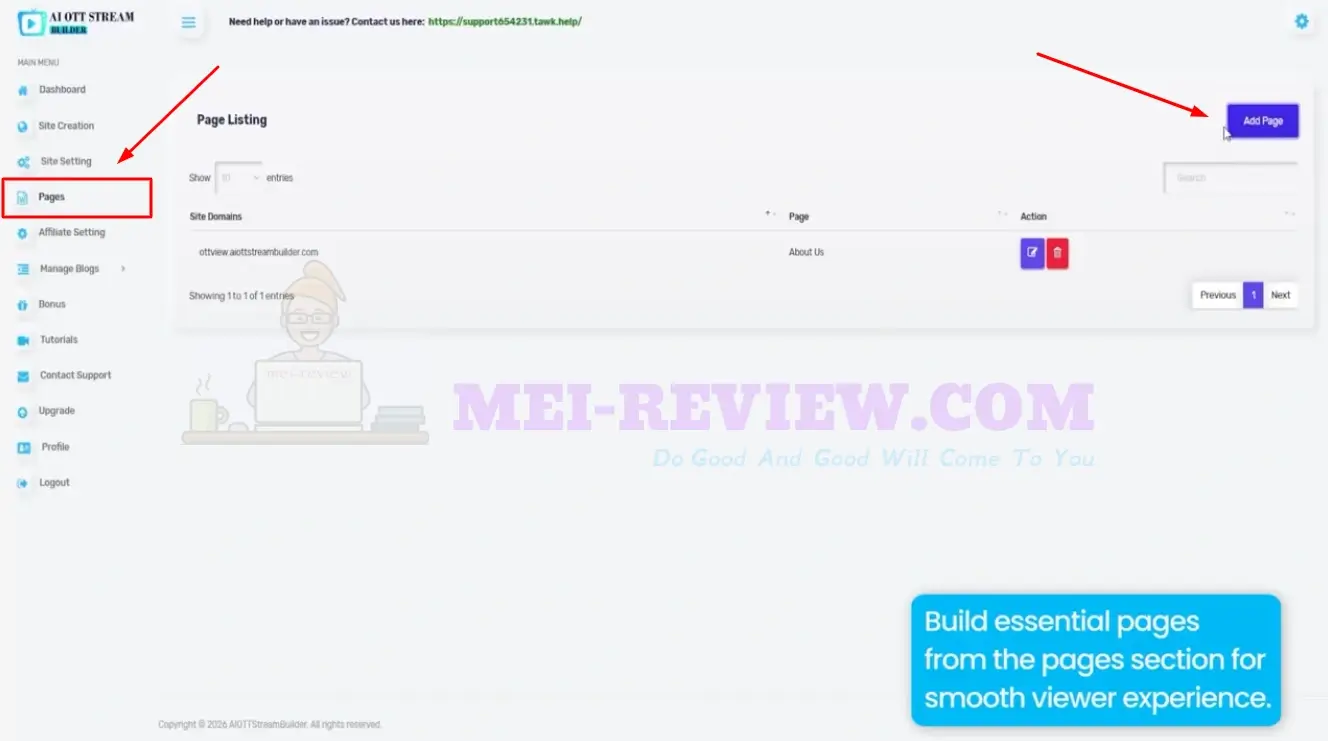
Go to the Pages section, then click Add Page to create a new page for your OTT website.
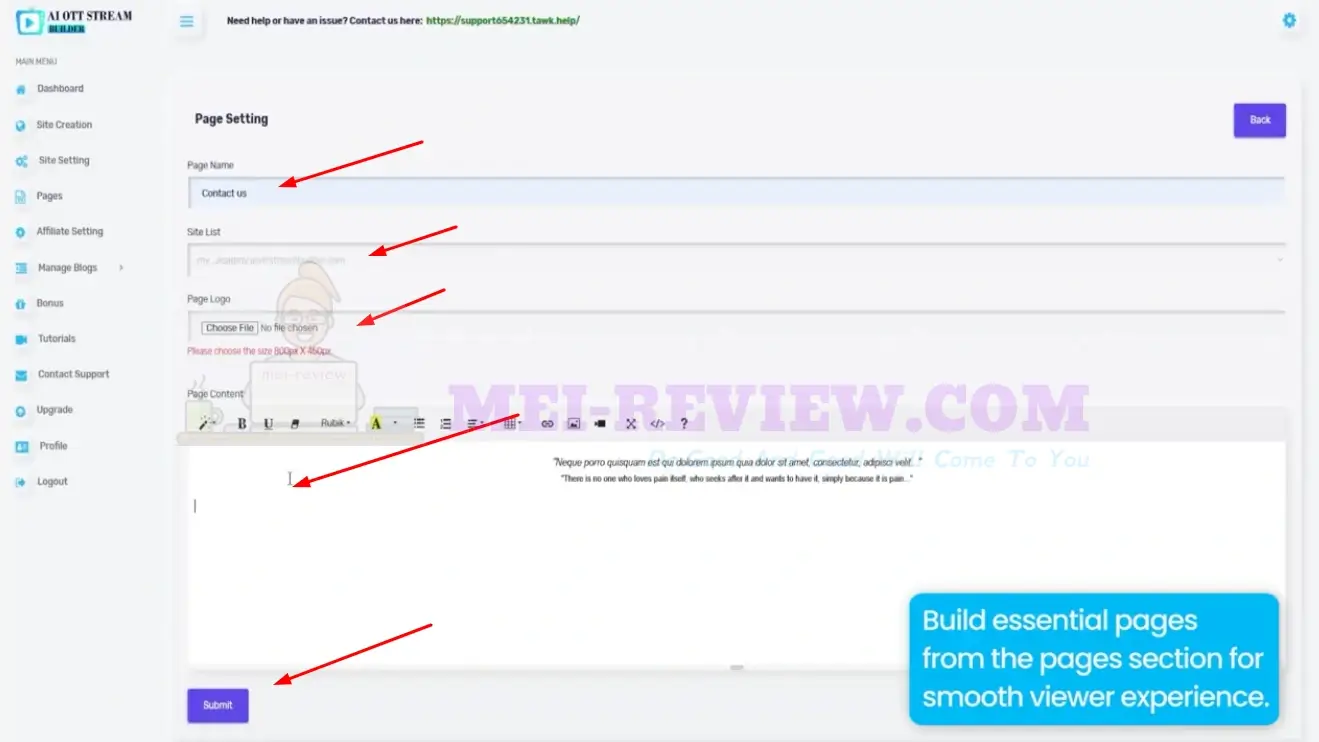
Add the page title, upload an image, enter your content, and click Submit to publish the page.
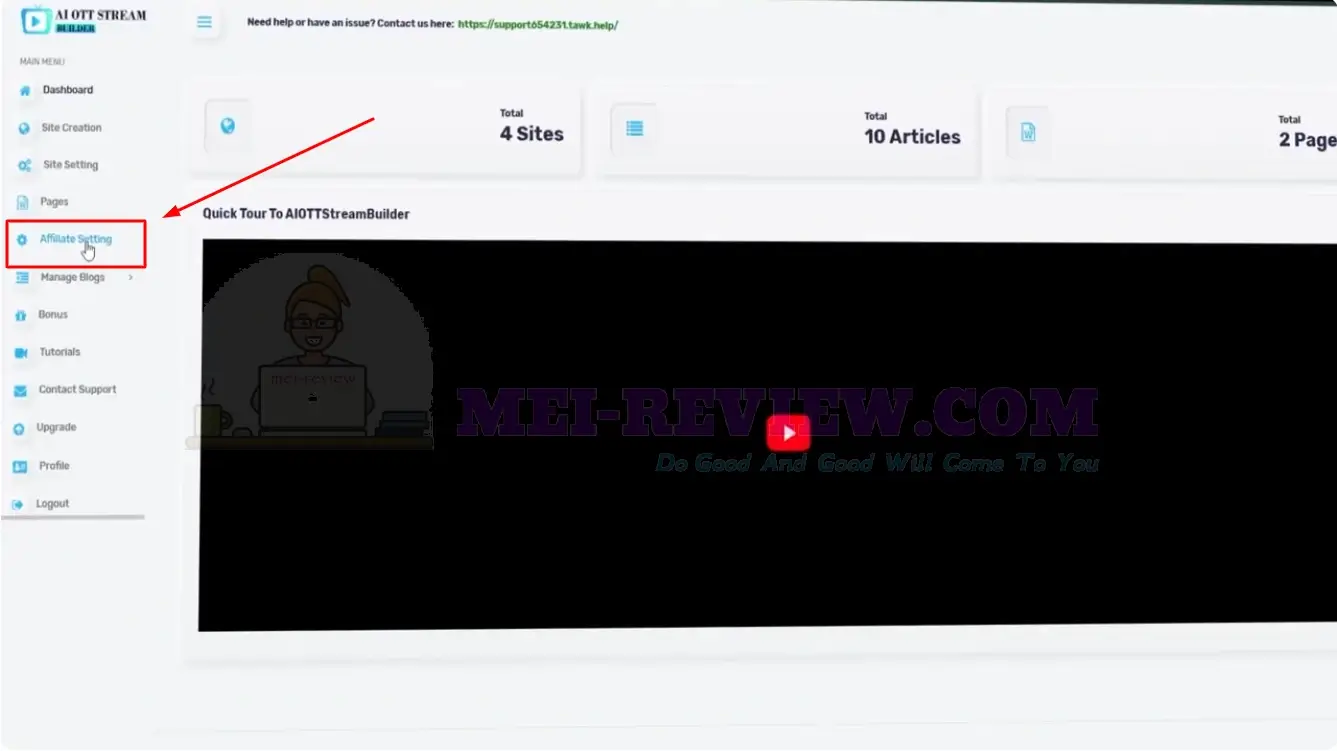
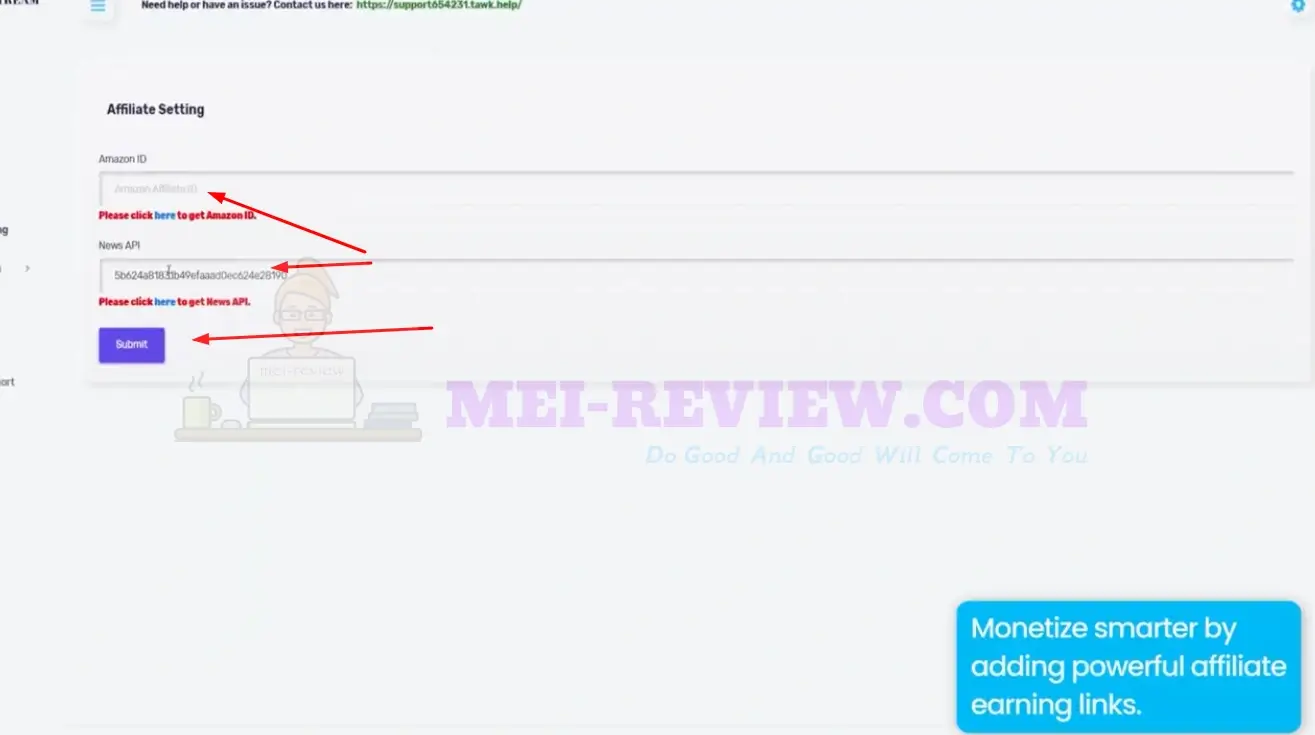
Open the Affiliate Setting section to manage affiliate links and monetization options for your platform. Enter your affiliate IDs, then click Submit to connect your earning accounts.
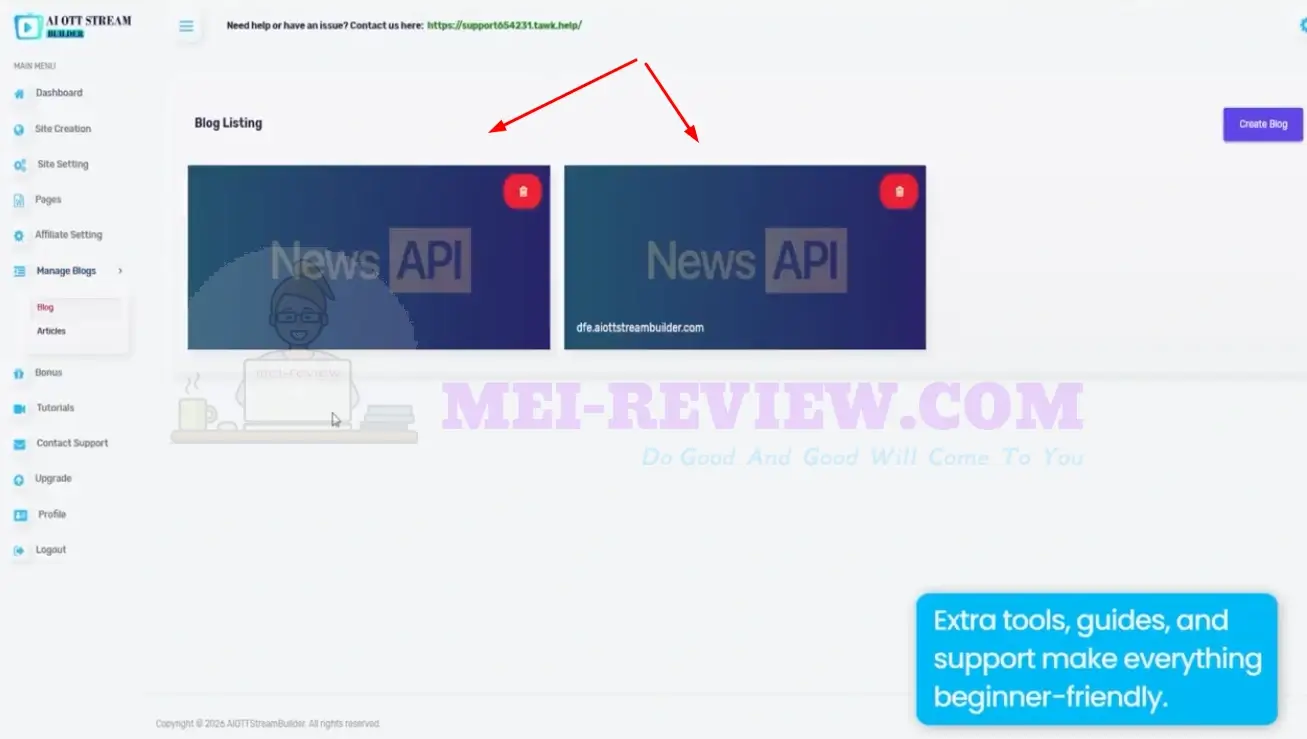
Use the Manage Blogs section to create, edit, and organize articles for your OTT platform.
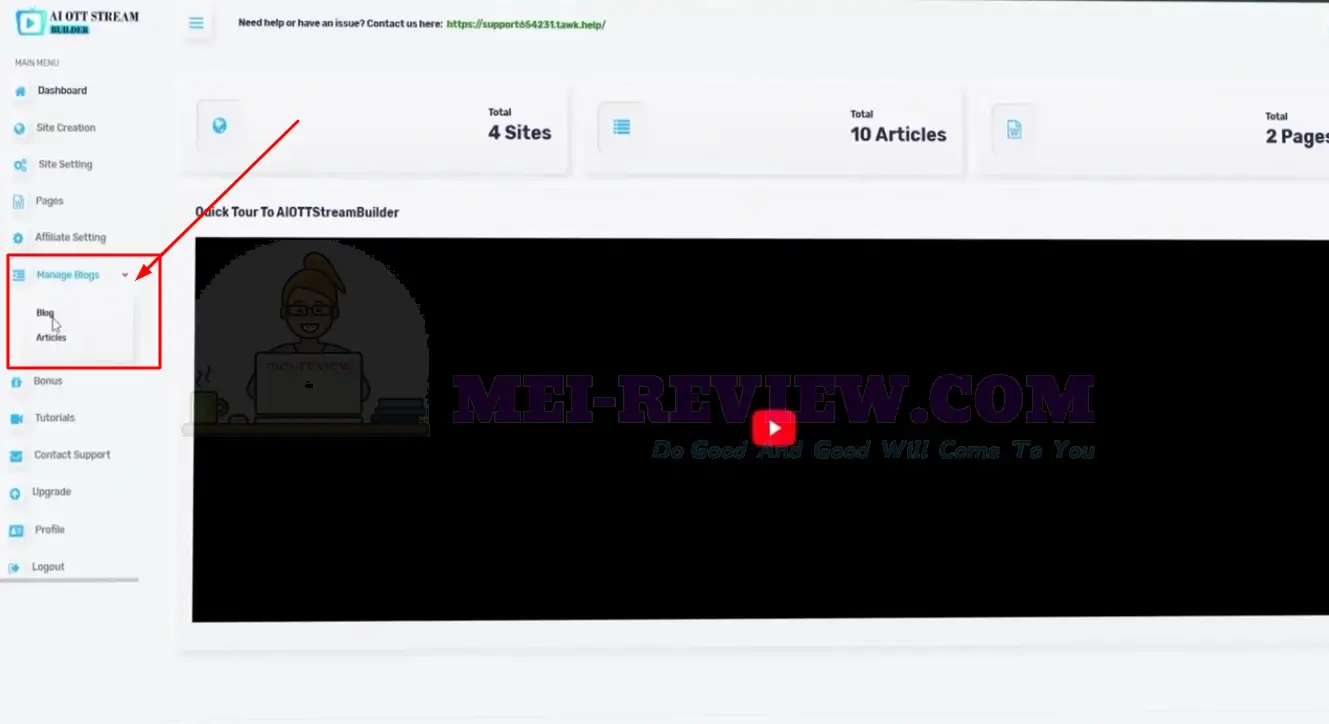
Review your current blog posts or click Create Blog to add a new article.
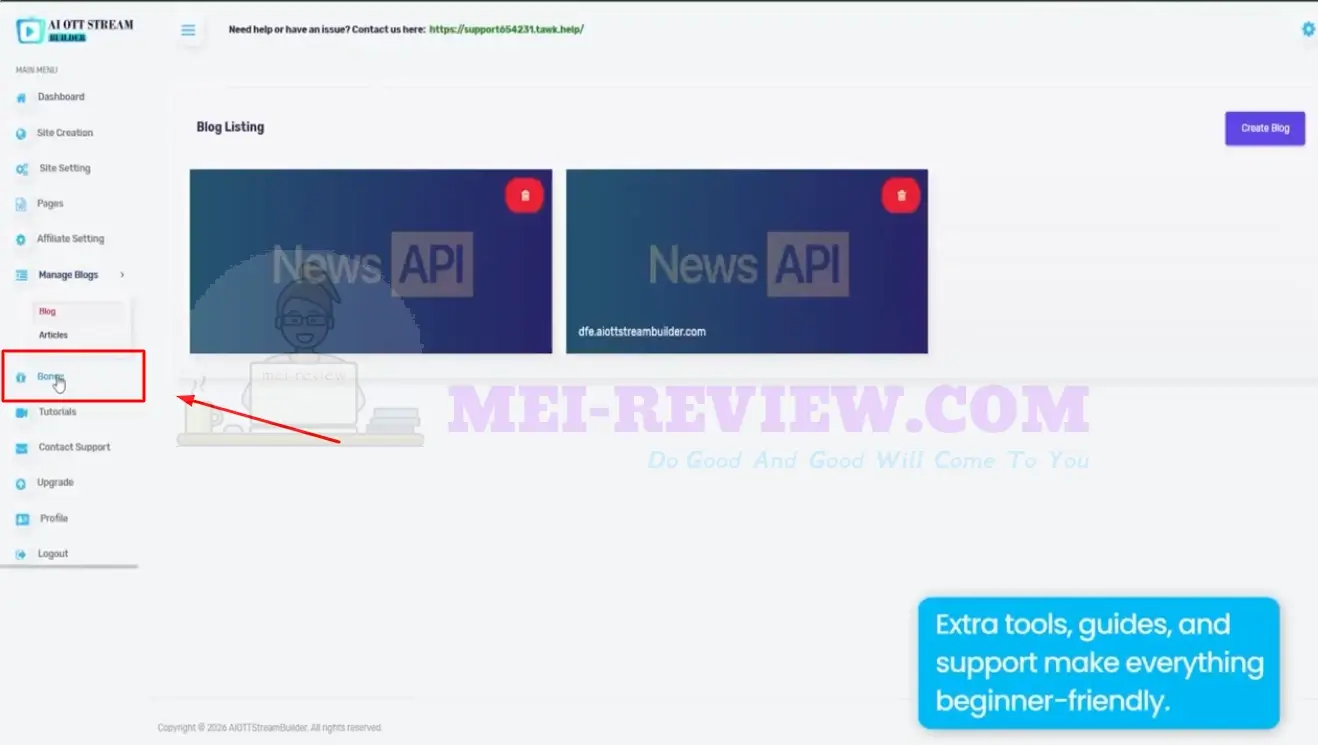
Visit the Bonus section to access extra tools, resources, and useful add-ons.
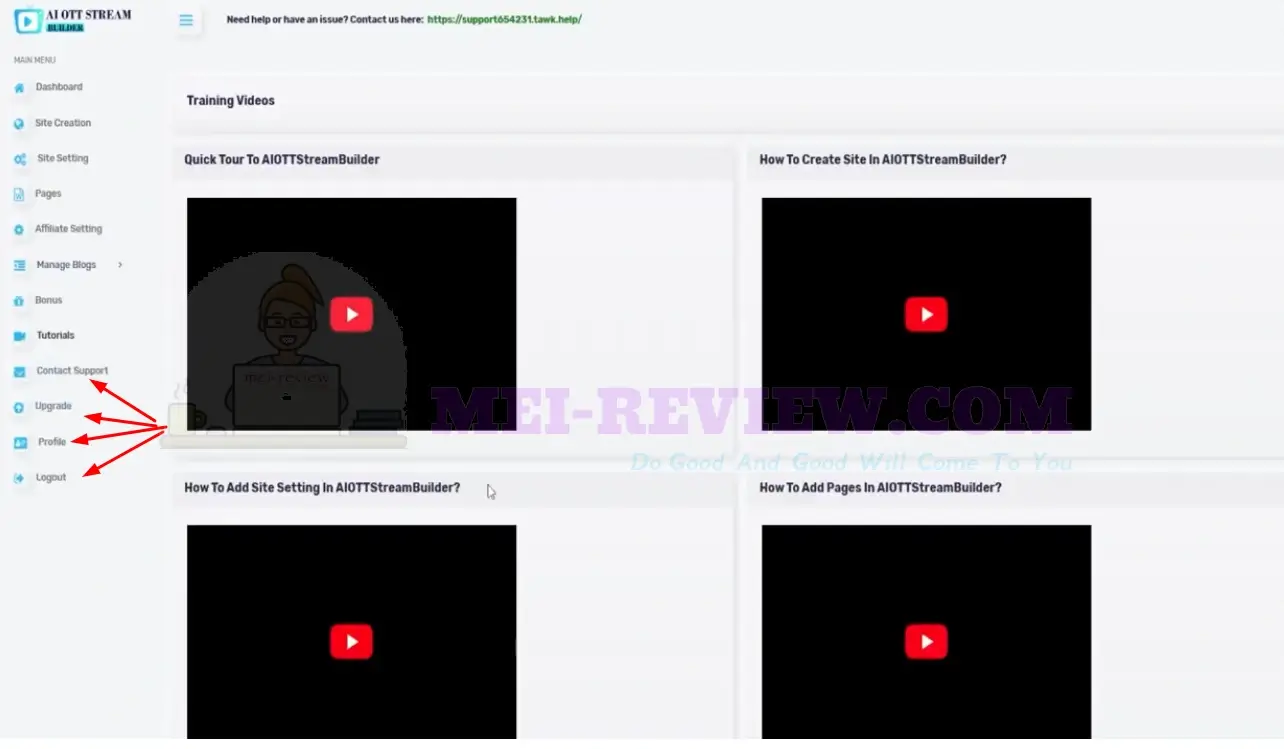
Open the Tutorials section to watch step-by-step guides and learn how to use the platform better.
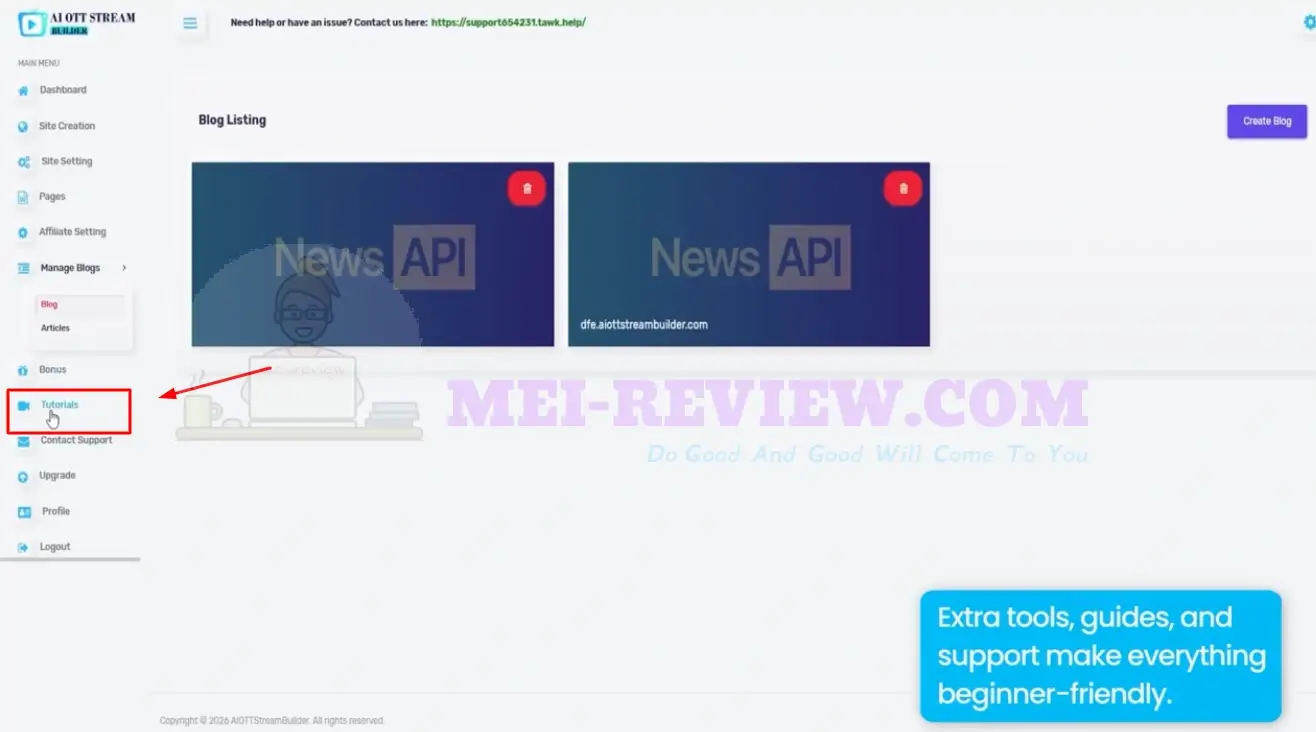
Use the sidebar menu to reach tutorials, support, upgrades, profile settings, or log out from your account.
AI OTT Stream Builder Demo Video