



















SerpSling AI Review: My Complete Walkthrough of This Software
Now, in this section, I will show the real process of using this software to analyze a URL, find out what may be blocking visibility on AI search engines, and how you can even fix them for your clients inside it.
[+] Run The Audit
- Step 1: Start a New AI Visibility Audit
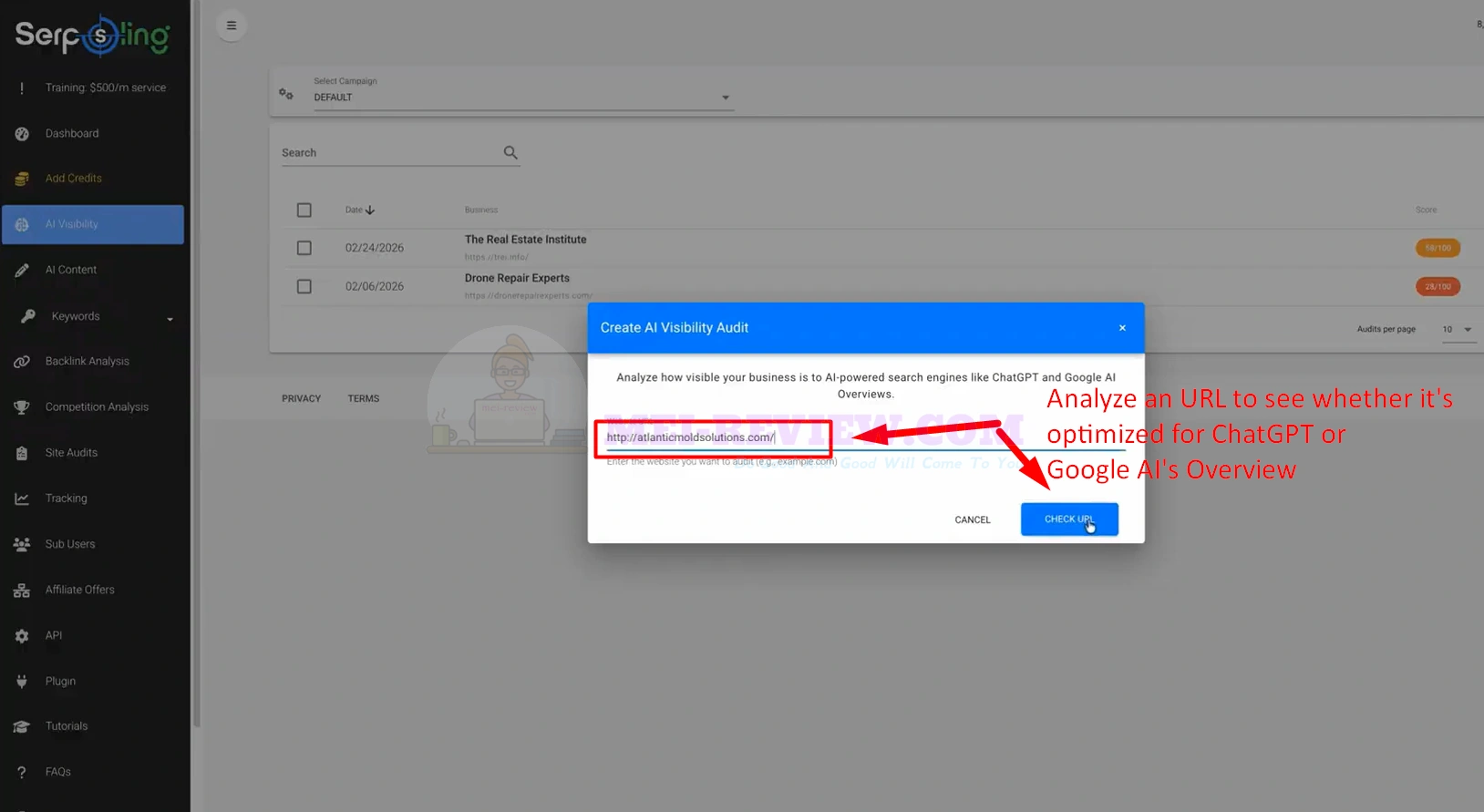
To begin, open the “AI Visibility”section and create a new audit. Enter the website URL you want to analyze, then click “Check URL”to let SerpSling AI review whether that site is properly optimized for AI search platforms like ChatGPT and Google AI Overviews:
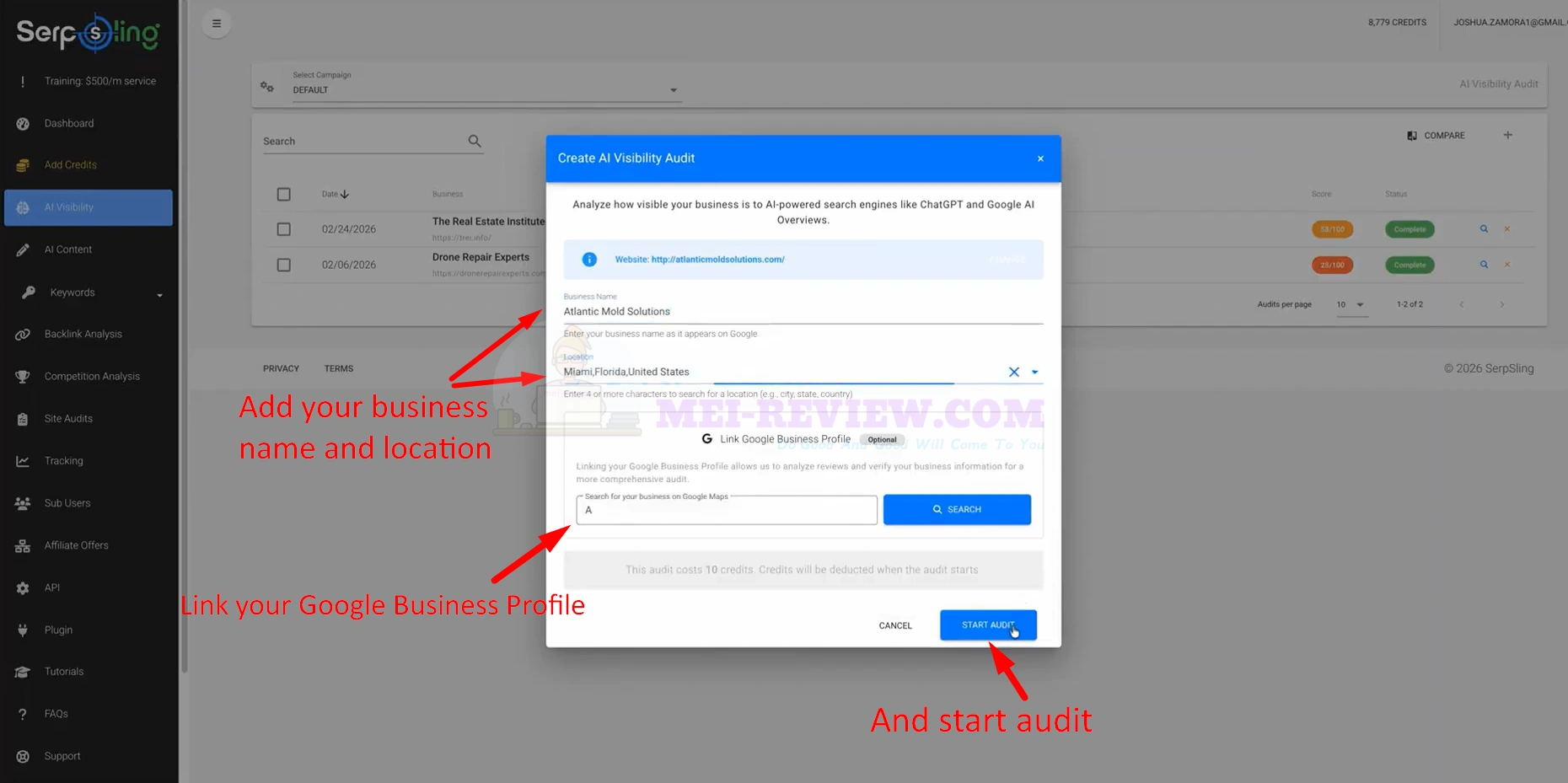
Next, enter the business name and location so the system can analyze the site with more accurate local business context. You can also connect the Google Business Profile here, then click“Start Audit”to begin the full AI visibility analysis:
- Step 2: Let the Audit Run
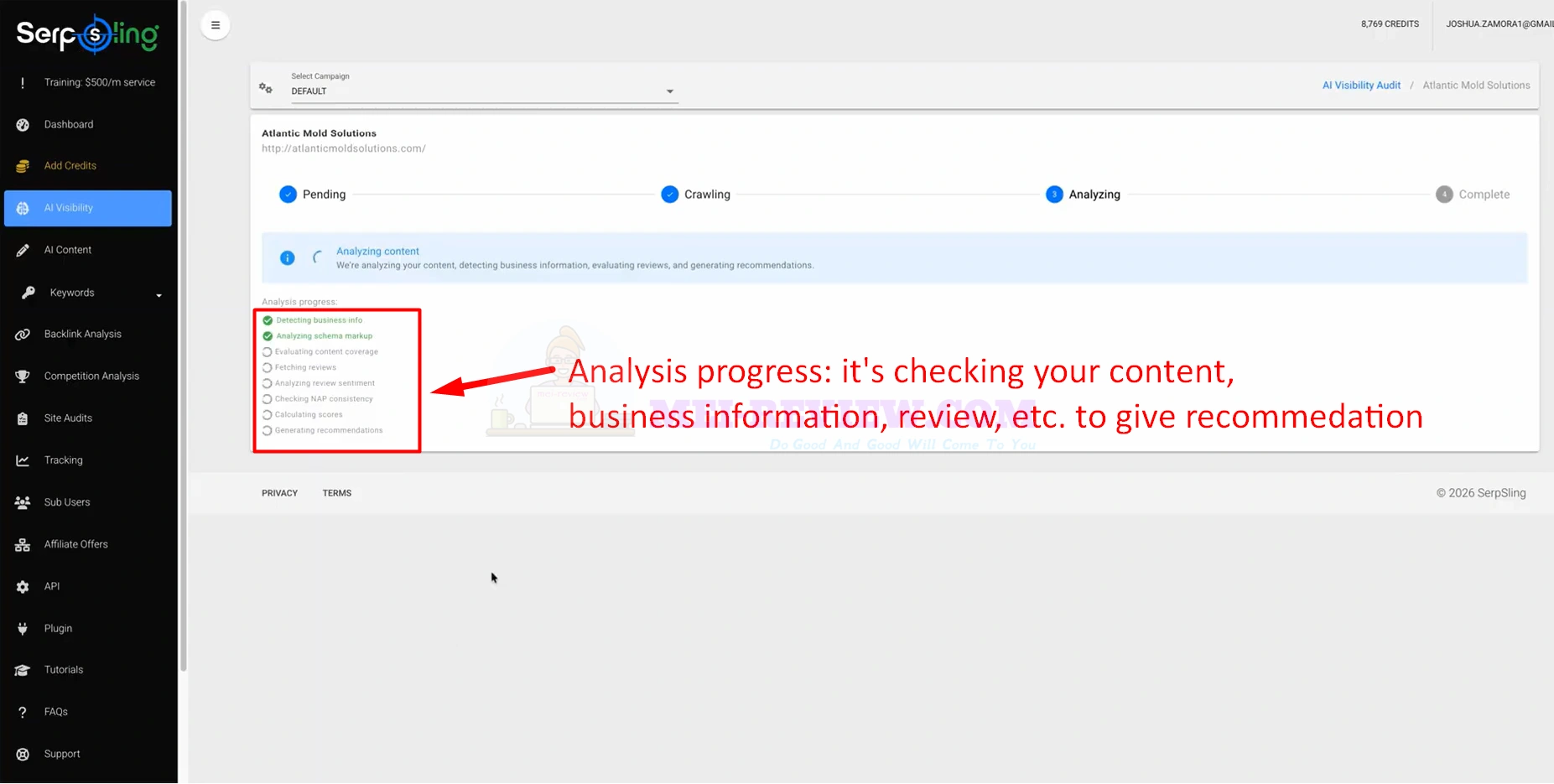
Once the audit starts, SerpSling AI begins checking the site step by step. At this stage, it scans the website content, business details, reviews, and other important trust and visibility signals to identify what may be missing for AI search engines:
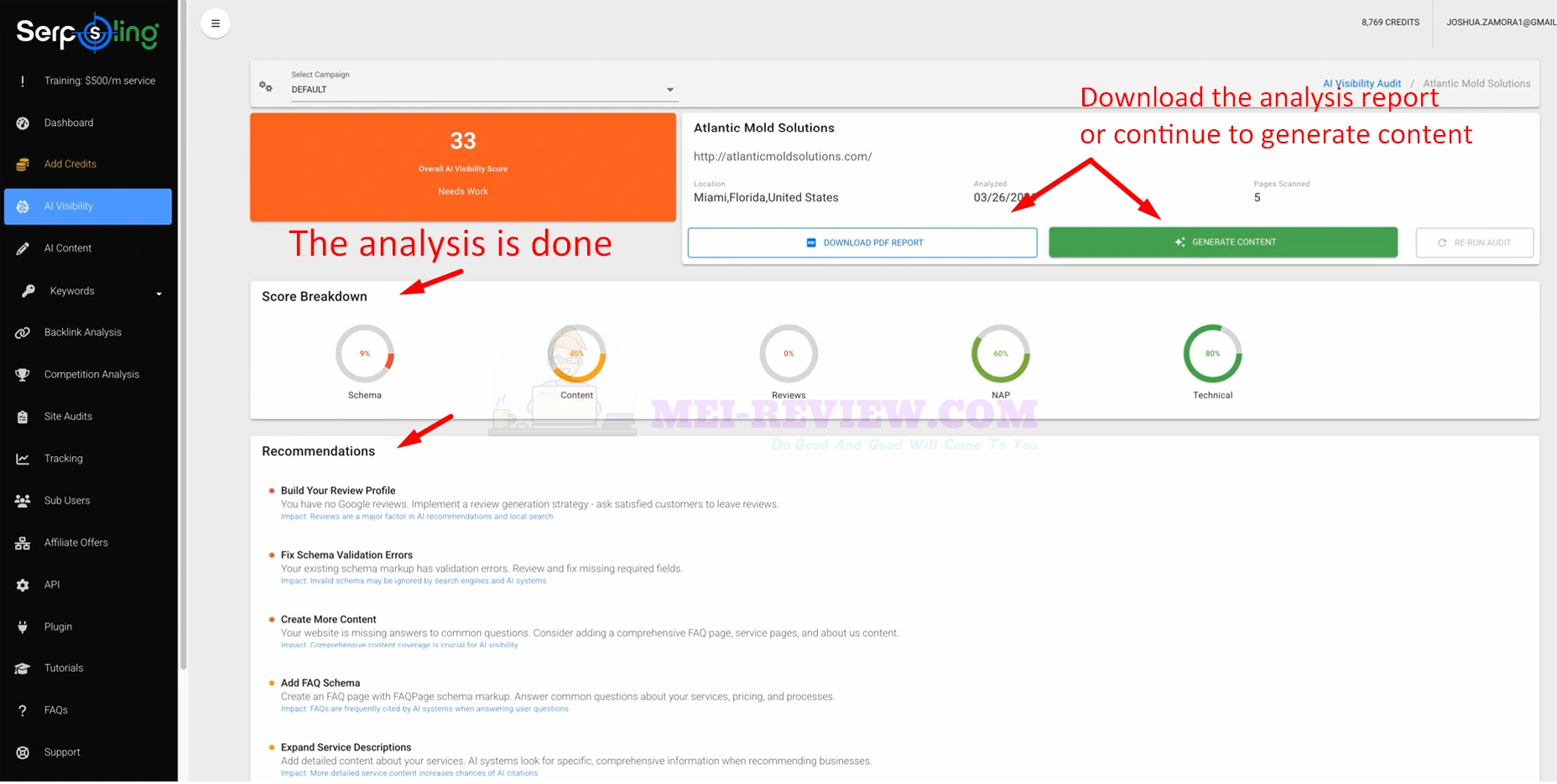
After the scan is complete, you will see the audit overview dashboard. This gives you the main AI visibility score, a score breakdown, and a list of recommendations. From here, you can either download the report or move to content generation based on the findings:
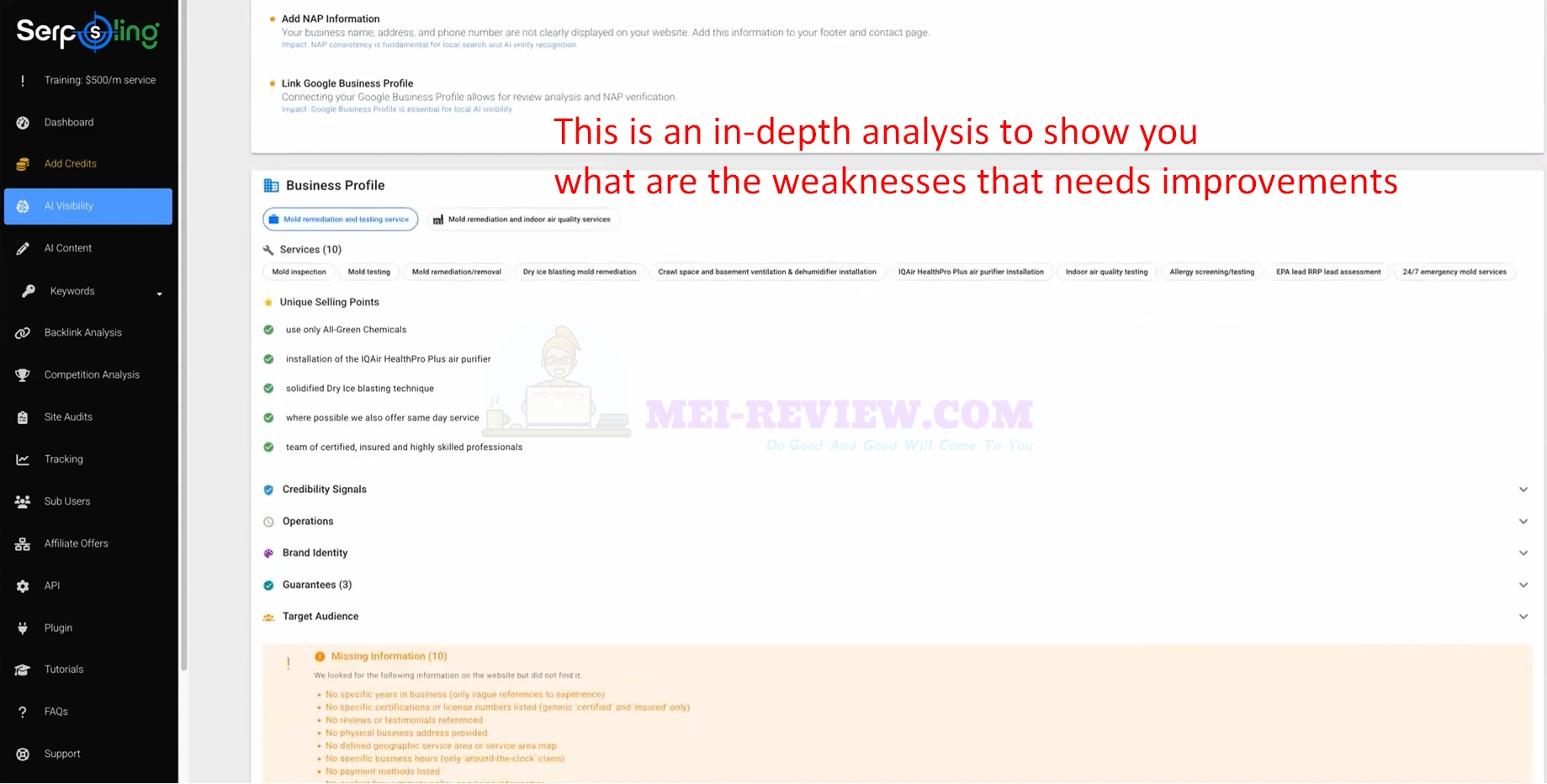
Scroll down to see a deeper breakdown of the audit. SerpSling AI highlights the weak areas that need improvement, making it easier to understand what is holding the business back from stronger AI visibility:
[+] Explore the detailed audit result
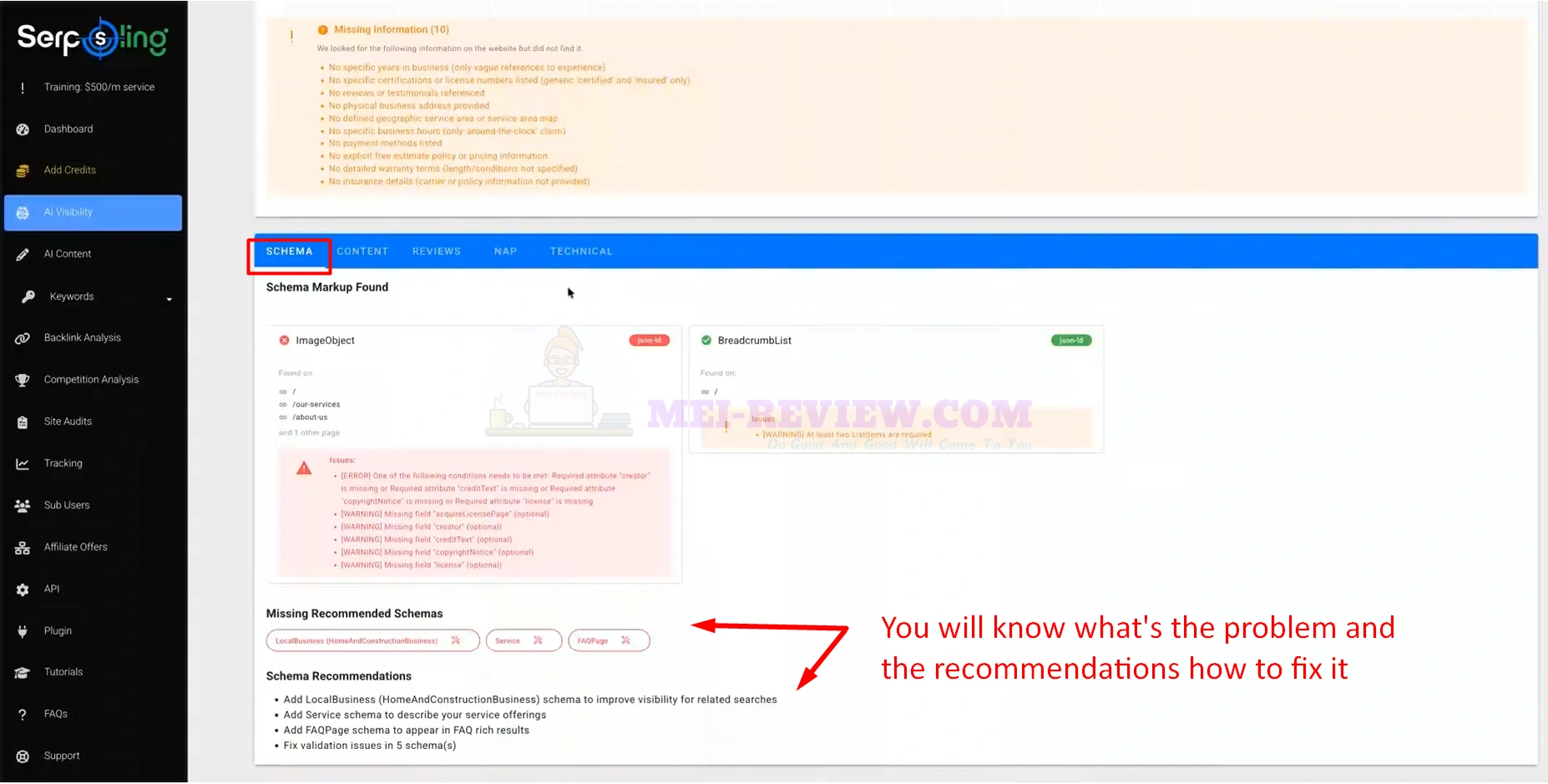
You can switch between tabs like Schema, Content, Reviews, NAP, and Technical to inspect each area in detail. The platform shows what problems were found and gives clear recommendations on what should be fixed to improve AI search performance.
First up, the SchemaMarkup:
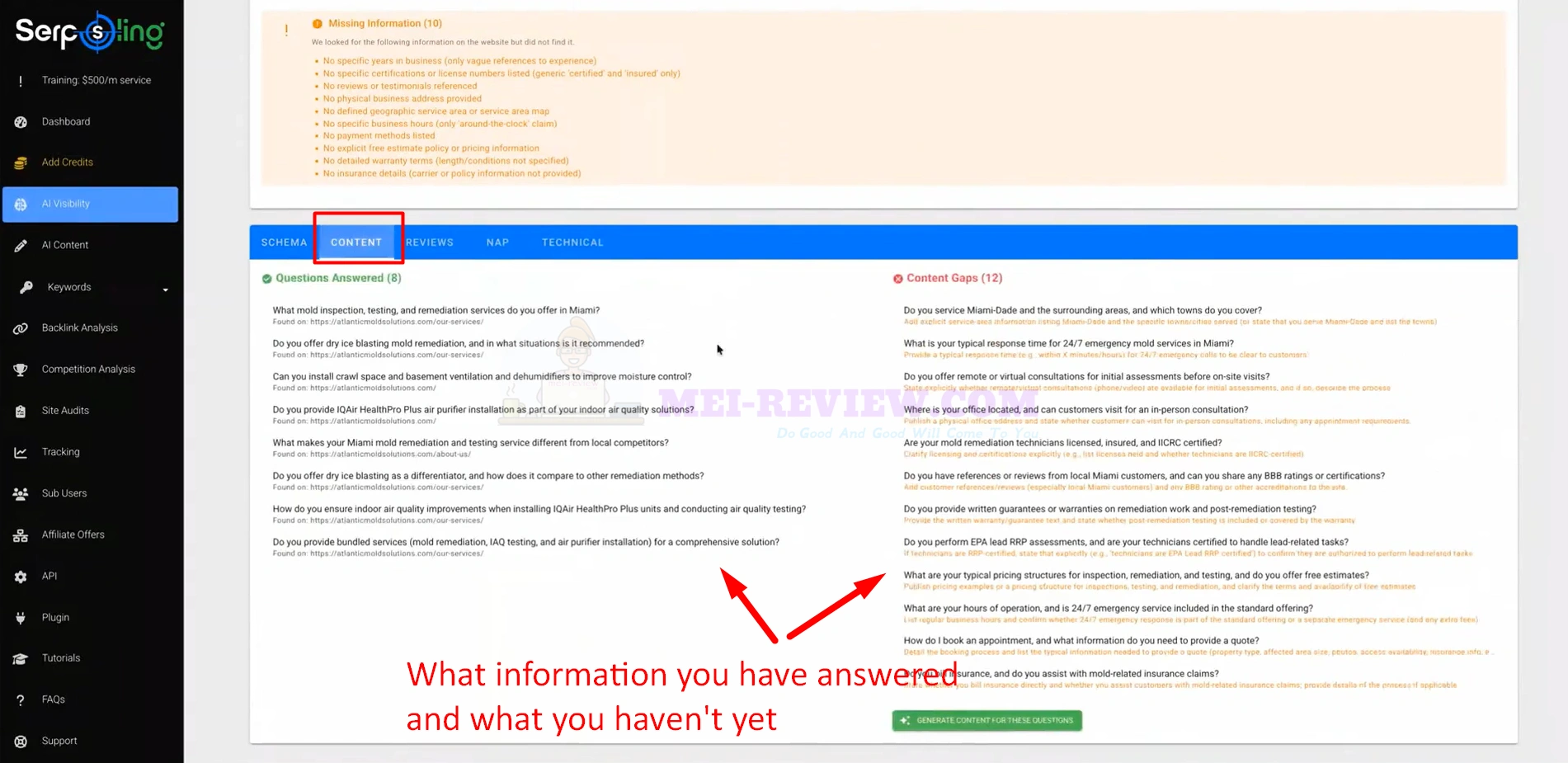
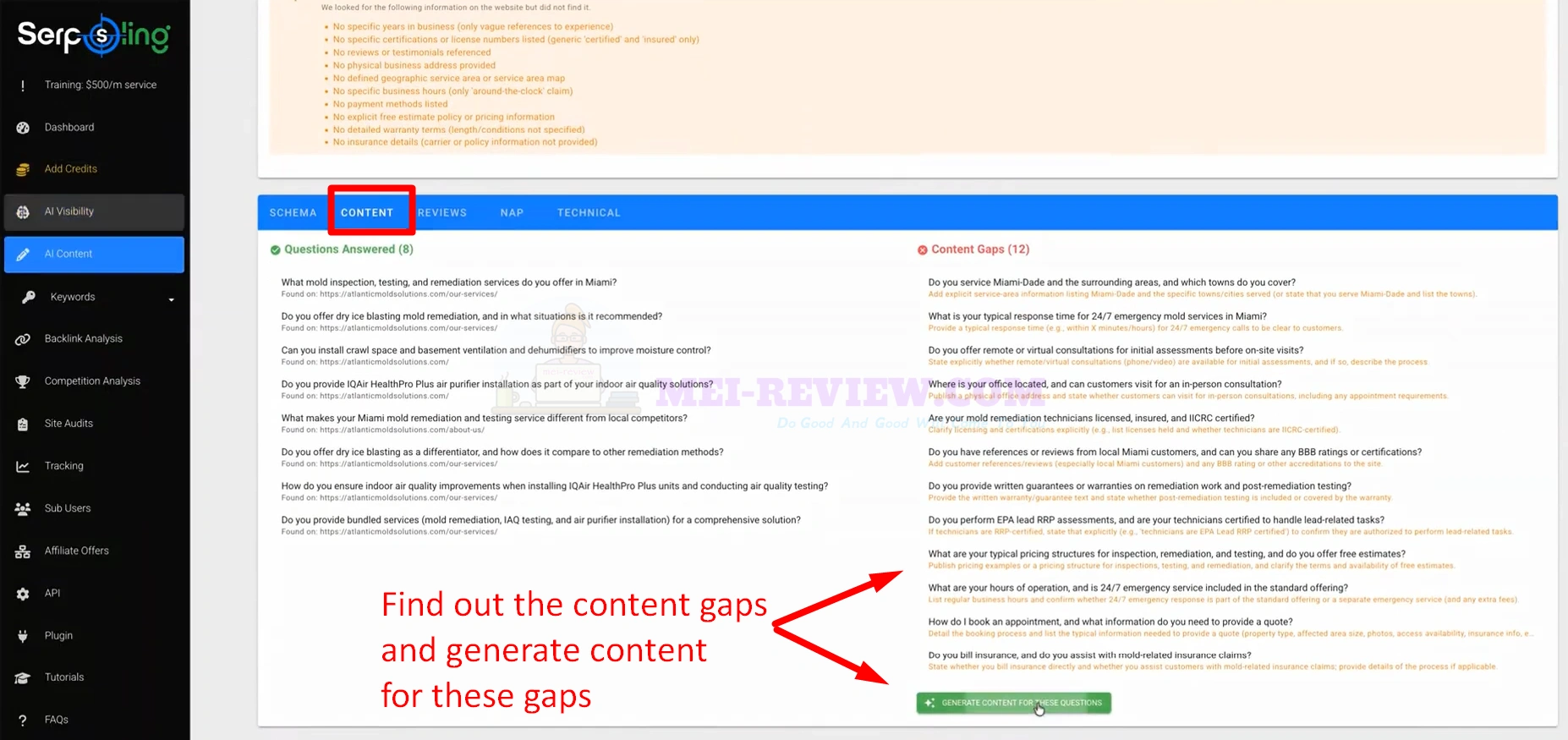
In the Content tab, SerpSling AI shows which questions the website already answers and which important questions are still missing. This helps you see where new content should be added to make the site more complete and more useful for AI search engines:
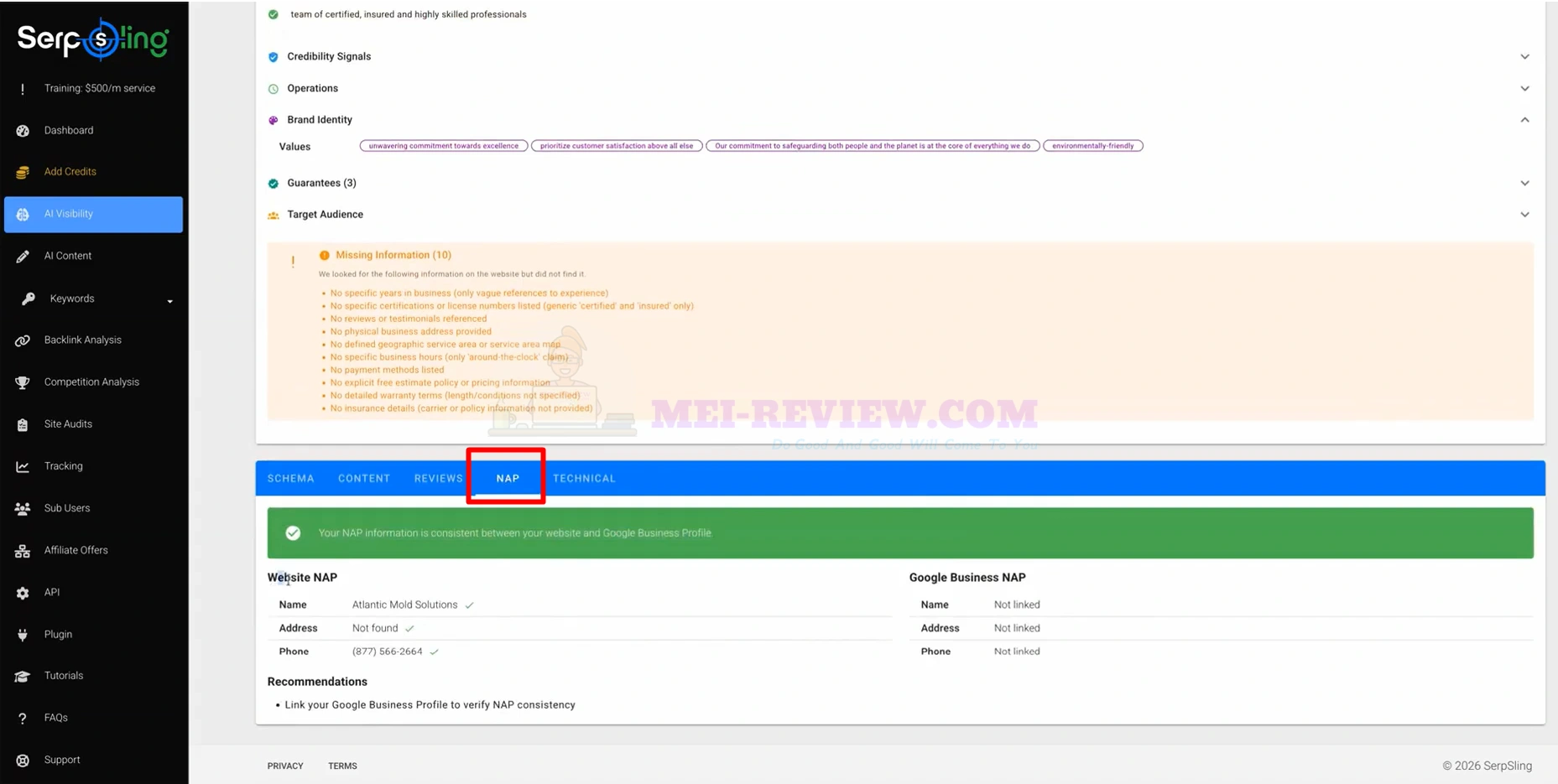
In the NAP tab, you can check the business name, address, and phone details found on the website and compare them with the Google Business Profile data. This helps spot inconsistencies that may weaken trust and visibility in AI search:
After having this insightful report, you can take action by downloading it and sending it to your client. Here’s what the report looks like in PDF format:
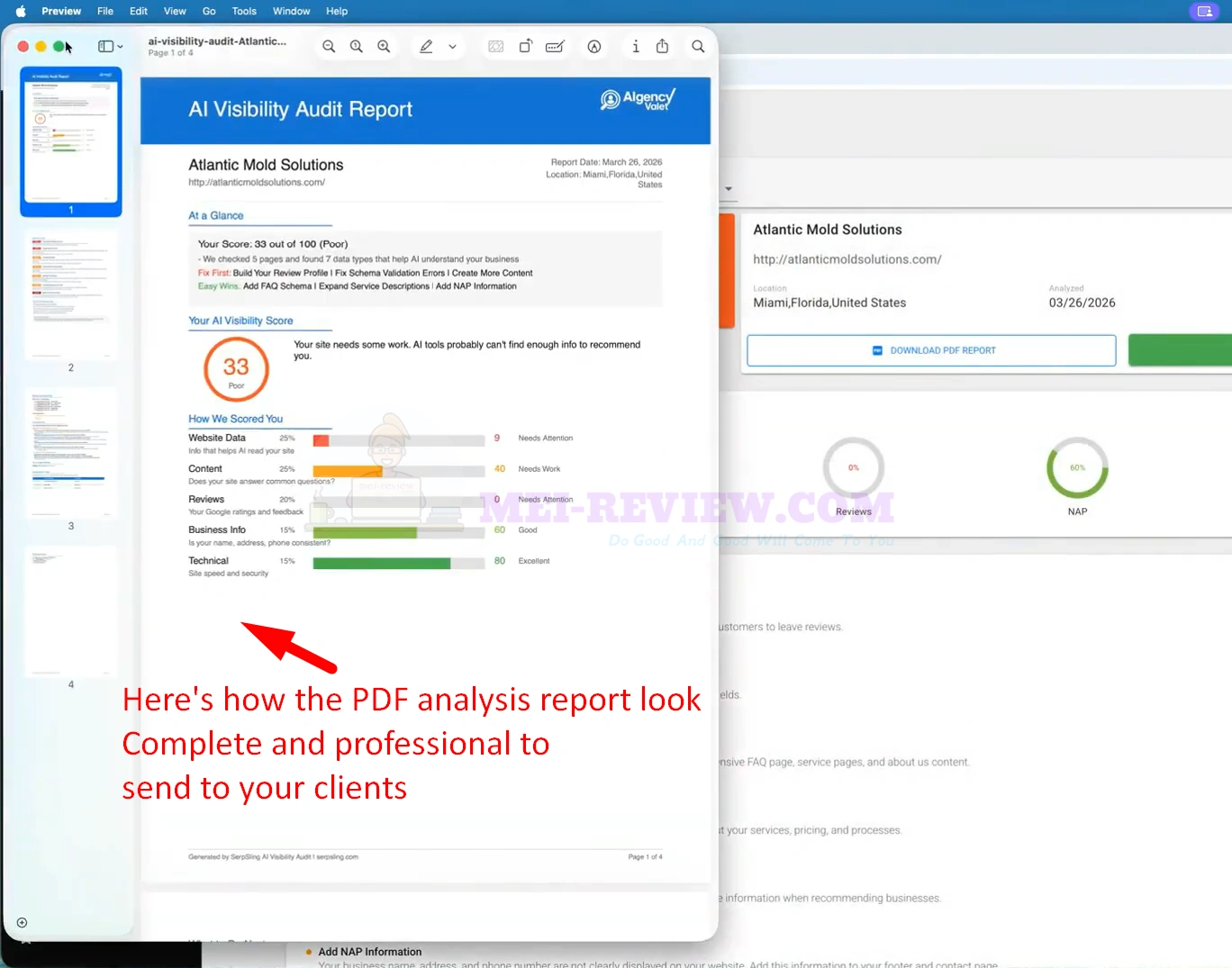
When clients see this report, they can instantly understand the weak points in their online presence and why they may not be performing well in AI search. That alone builds trust, because you are showing them clear problems they need to fix, not just making vague claims.
And when they want your help, the next step is even better. You can handle those improvements directly inside SerpSling AI, without needing extra tools or a complicated workflow. Let me show you how that works below.
[+] SerpSling AI Fixes All The Issues
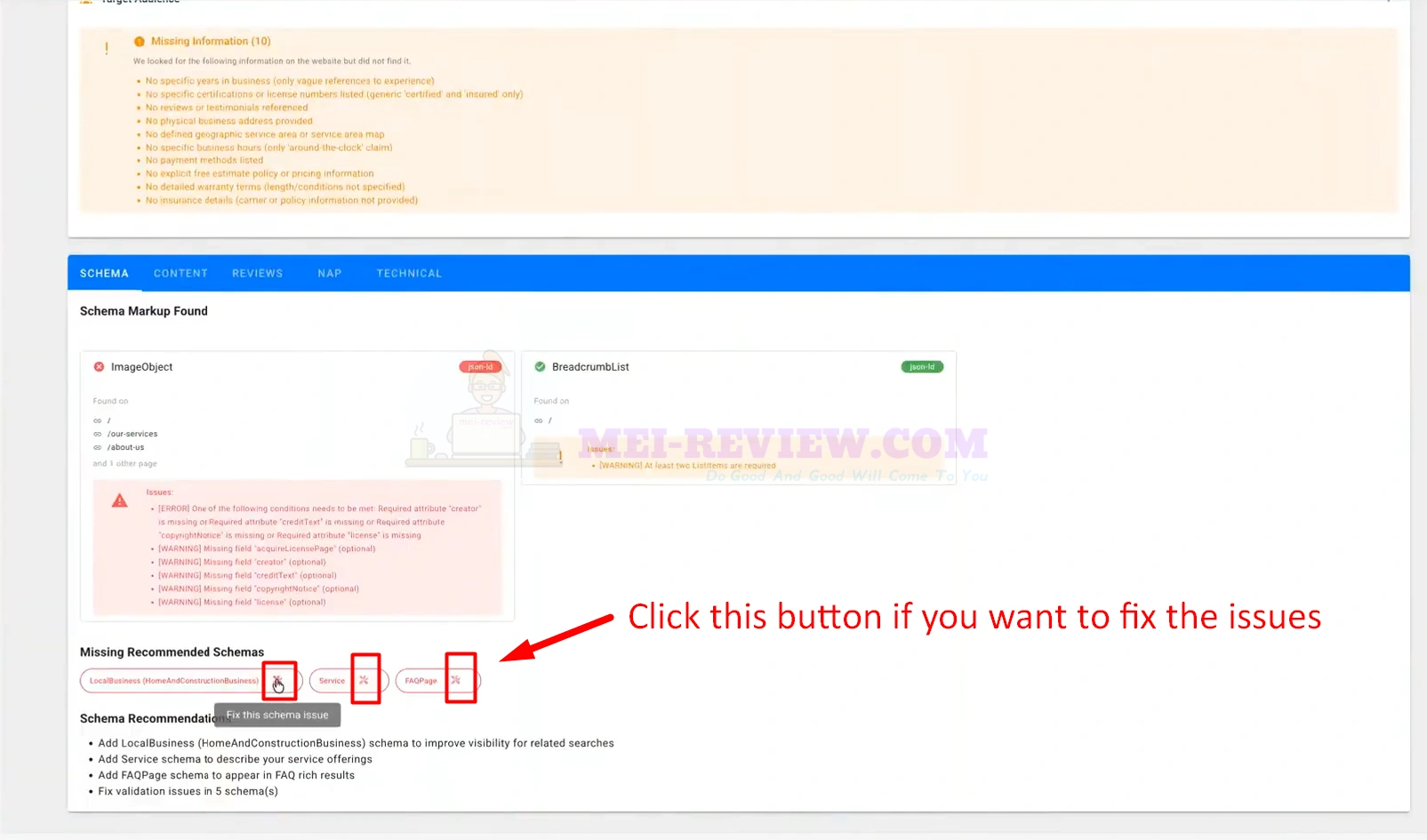
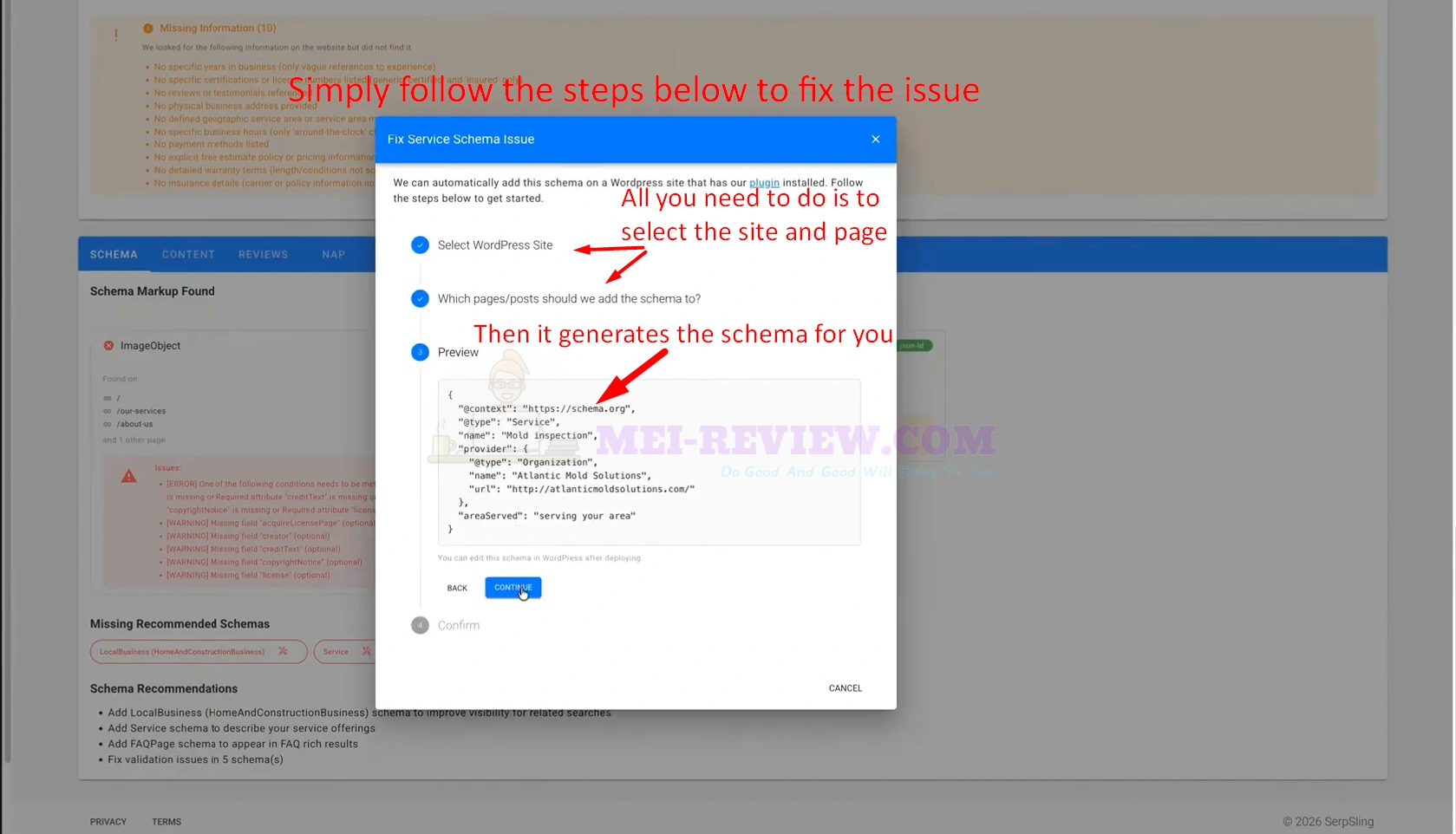
Inside the Schema tab, SerpSling AI shows the missing recommended schemas and validation issues. To fix one, simply click the small action icon next to the schema type you want to add or repair:
After clicking to fix the issue, a setup window opens. Select the connected WordPress site, choose the page or post where you want the schema added, preview the generated schema, then continue to let the software prepare it for deployment:
- Generate Content for Missing Questions
Next, go to the Content tab to review the unanswered questions and content gaps. From here, click the “Generate Content For These Questions” button to create content based on the missing information the audit uncovered:
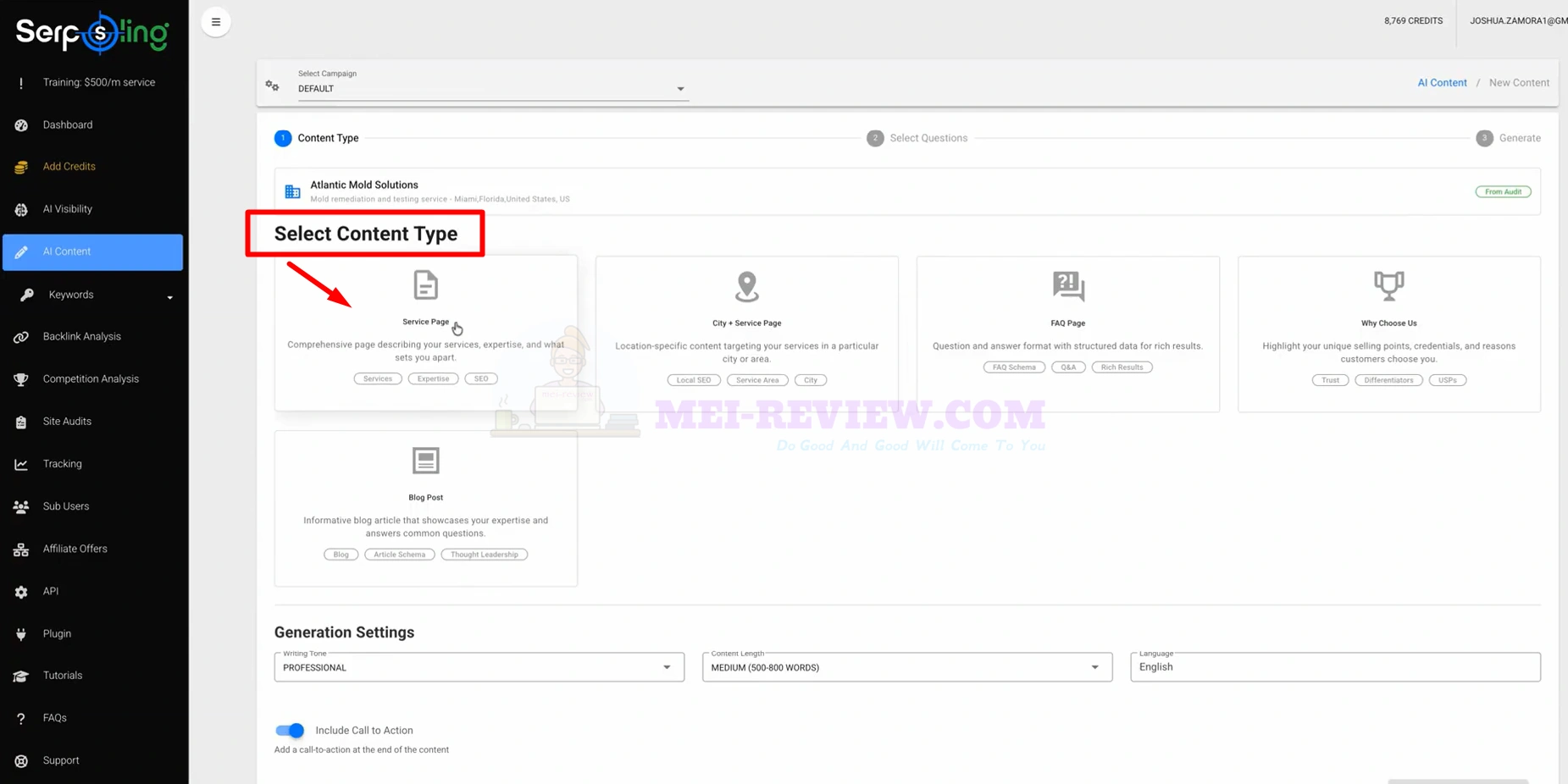
SerpSling AI will then ask what type of content you want to create. Select the format that best matches your goal, such as a service page, FAQ page, blog post, or another relevant content type:
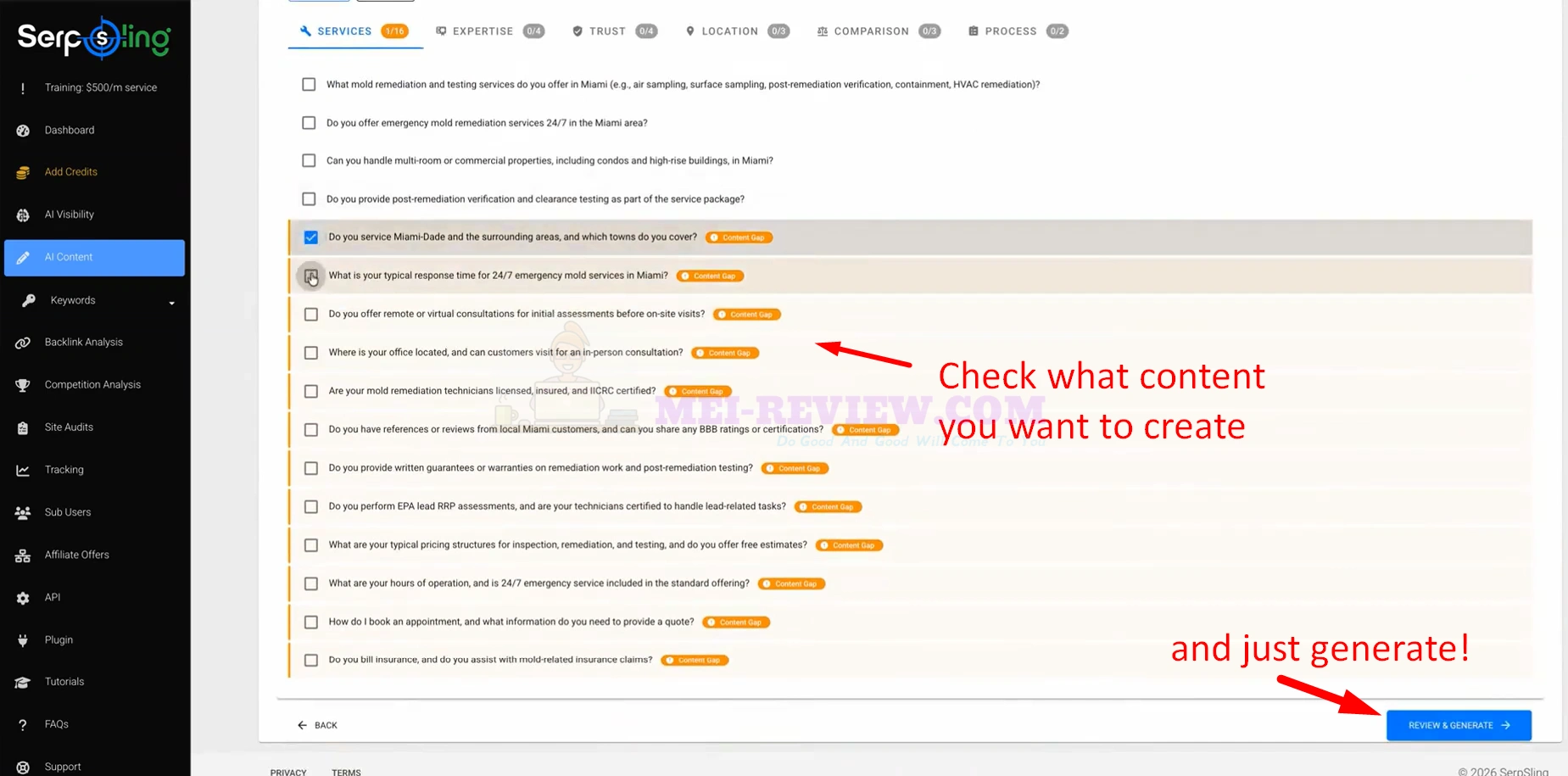
After choosing the content format, check the questions or gaps you want the software to address. Once selected, click “Review & Generate” to move forward and let the system generate the content:
The software then creates a full content draft based on the selected questions. This gives you ready-to-use content built to strengthen the business site and improve its visibility across AI search engines:
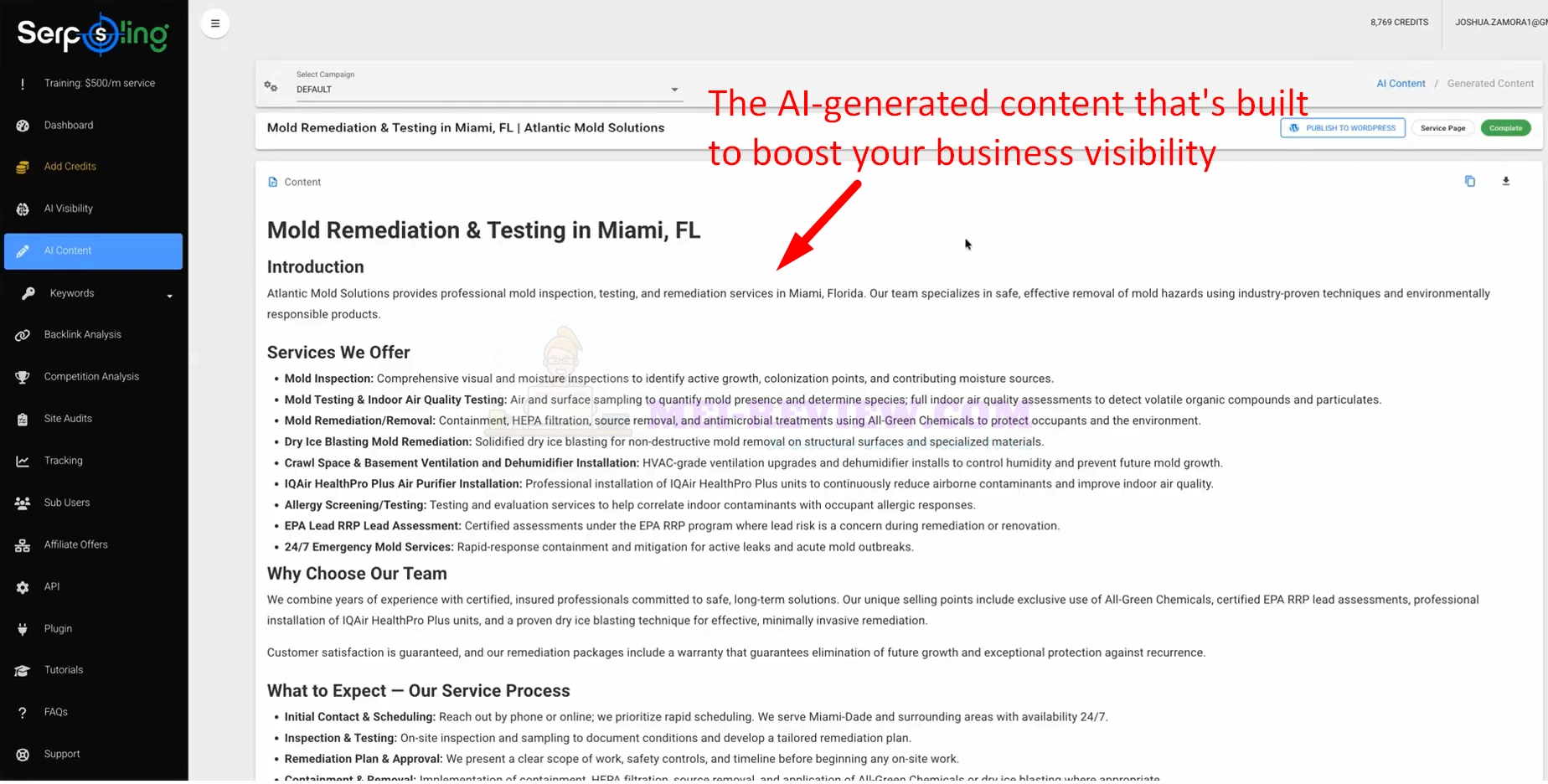
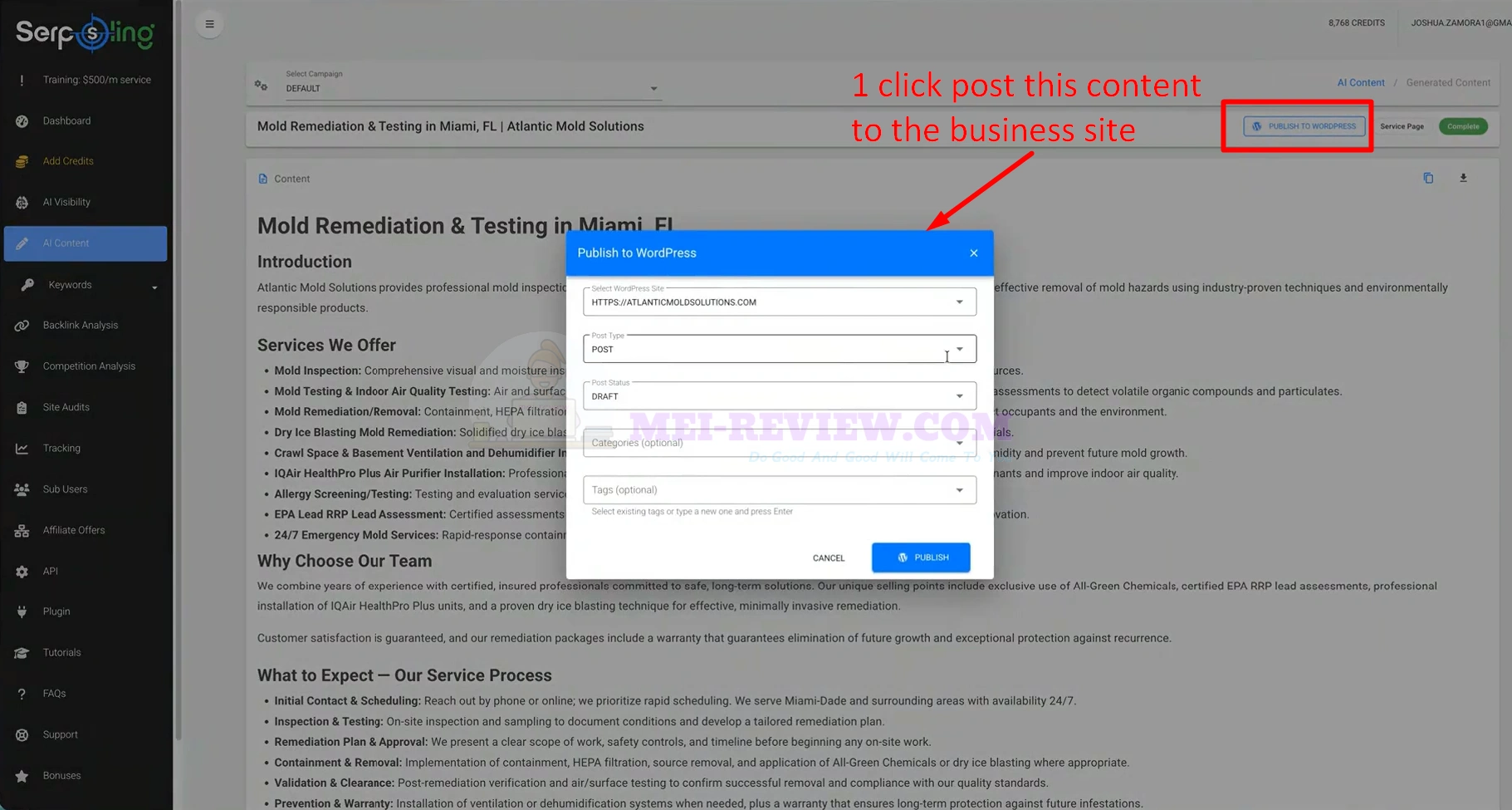
When the draft is ready, click “Publish to WordPress”.Then choose the target site, page details, and category settings, and click “Publish” to send the content live directly from inside the dashboard:
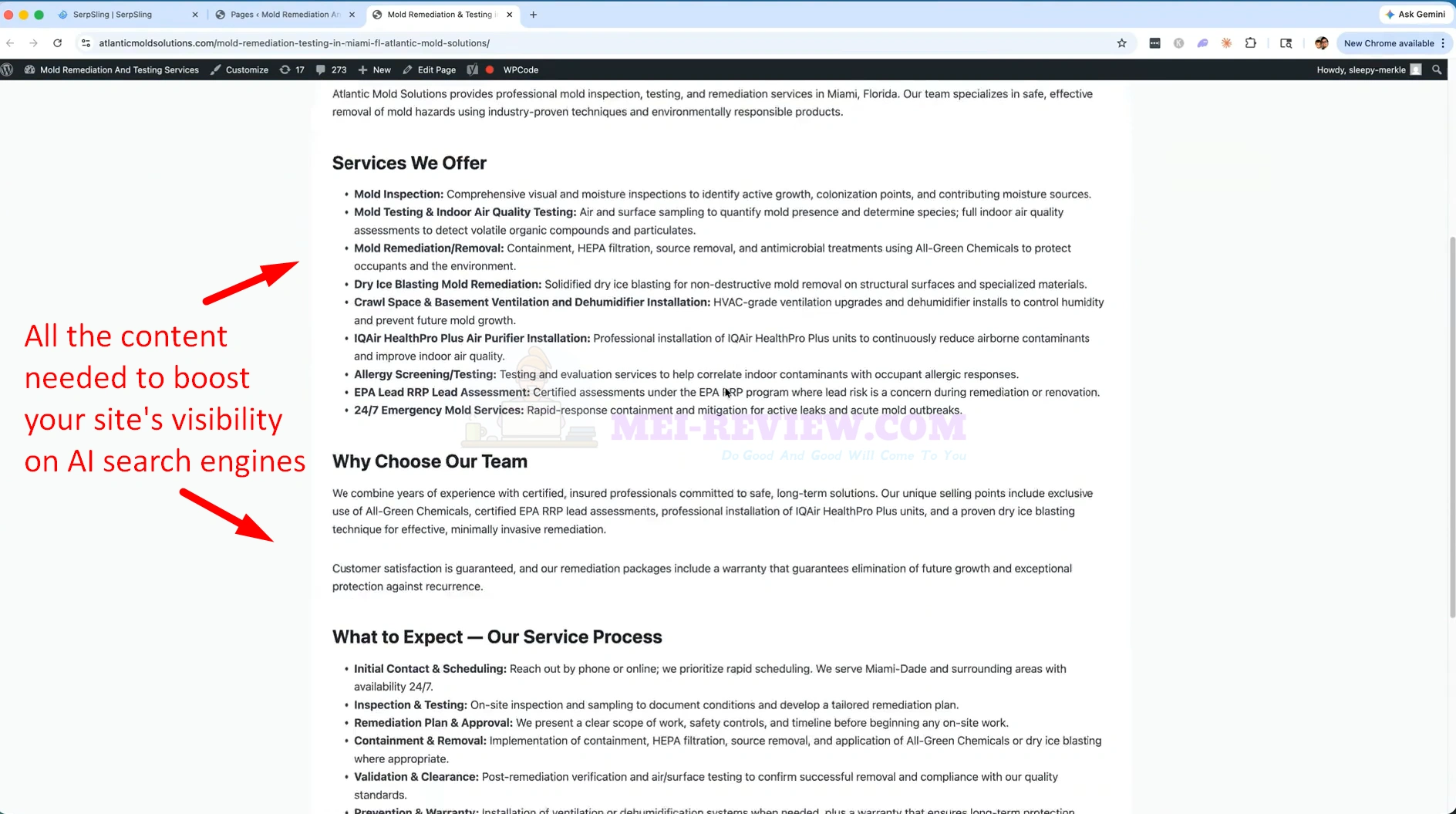
Once published, the content appears on the business website as a live page or post. At this point, the site has new supporting content added based on the audit recommendations, helping improve relevance, completeness, and AI search visibility.
Demo Video